NetMirror – Watch Movies & TV Series Online Free Download Official v6.1 (Updated 2026)
Ready to enjoy your favorite movies and TV series? Download NetMirror latest version today and explore a smooth entertainment experience across compatible Android devices with simple access and easy navigation.
NetMirror
NetMirror is an entertainment application designed for users who enjoy browsing movies and shows on compatible devices. Its simple interface makes NetMirror easier to explore available content without navigating complicated menus. Users can search for titles on NetMirror, browse available categories, and check content details from one place. The overall NetMirror experience depends on the application version, device compatibility, internet connection, and available content sources. For seamless playback, always keep NetMirror updated to the latest build.
For Android users, the NetMirror APK provides a manual installation option when the application is distributed outside Google Play. Before downloading any APK file, users should verify its source and check whether the file matches their device requirements. This is especially important because third-party APK files can vary between websites. A careful installation process can help reduce compatibility and security problems.
What Is NetMirror?
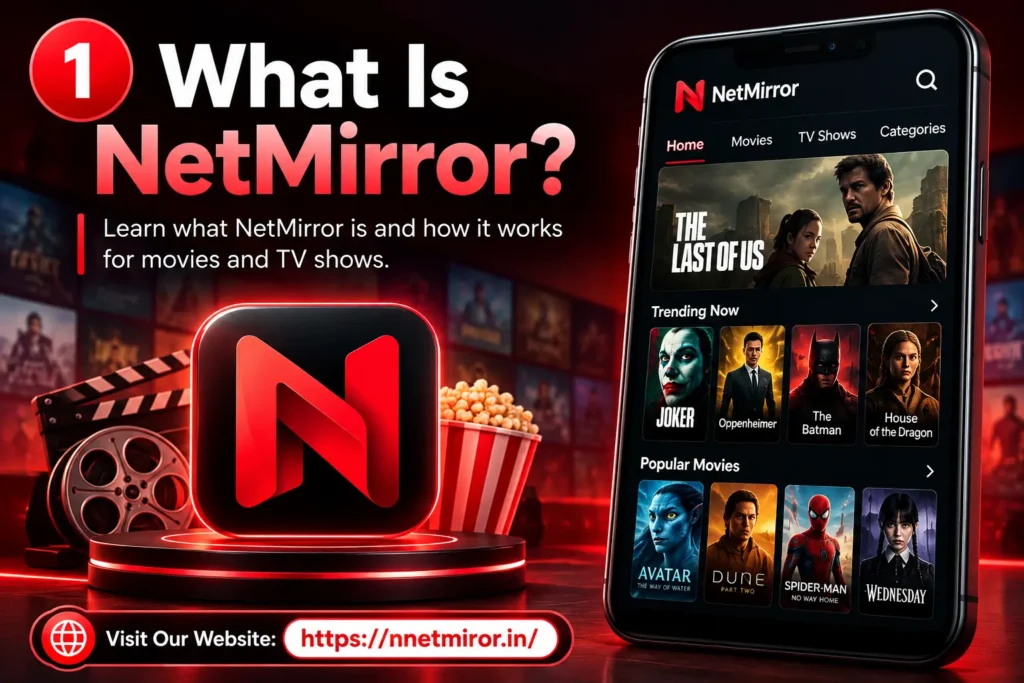
Netminer is an entertainment-focused application that allows users to explore available movies and television content. The platform is designed around content discovery, making it easier to search for titles and browse different entertainment options inside Netminer. Depending on the current version, users may find features related to search, categories, playback, subtitles, watchlists, or personalized content on Netminer.
The experience can differ between Android phones, tablets, televisions, and other supported devices. Installing netmirror download in android apk offers flexible media access across all screen sizes. Screen size, hardware performance, Android version, and internet stability can all influence how netmirror download performs on your system. Understanding these setup factors ensures smooth playback when running netmirror download apk on mobile or TV screens. Therefore, users should check compatibility before installing netmirror on a particular device.
The term NetMirror APK usually refers to the Android installation package. Unlike applications installed directly through Google Play, an APK can require manual installation. Android may also request permission before installing applications from external sources. Users should only enable such permissions when they understand the source of the file and consider it trustworthy.
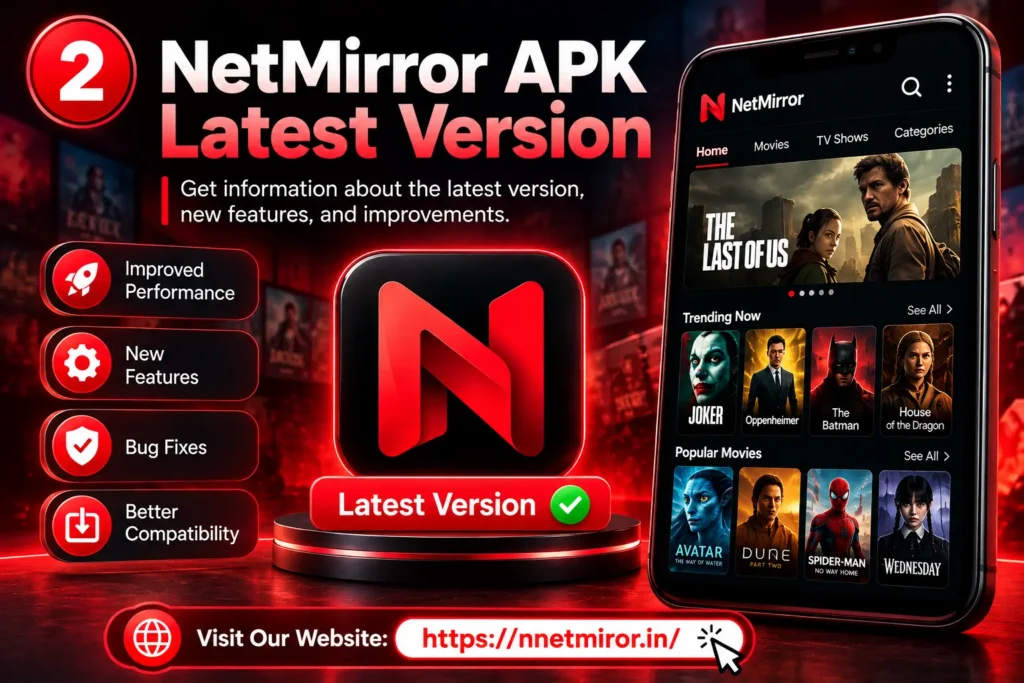
NetMirror APK Latest Version
Using the latest compatible netmirror download release can provide a better experience than relying on an outdated installation. New releases may include compatibility improvements, bug fixes, interface changes, or other updates. However, the exact changes depend on the particular version being distributed.
Before installing an updated APK, users should compare the version information with the existing application. It is also useful to check the file size, Android requirements, and release information when those details are available. This simple check can prevent users from installing an incompatible or incorrectly labeled file.
The latest version build for NetMirror APK is v6.1 (with build variants like v6.0 and v3.20.5 also widely distributed depending on the source platform).
App Details Overview
| Feature | Details |
| App Name | NetMirror APK |
| Latest Version | v6.1 |
| File Size | ~49 MB – 56 MB |
| Operating System | Android 5.0+ (iOS supported via WebView / Sideloading) |
| Core Features | HD/4K streaming, multi-language audio & subtitles, screen mirroring, ad-free playback, no account required |
NetMirror Features
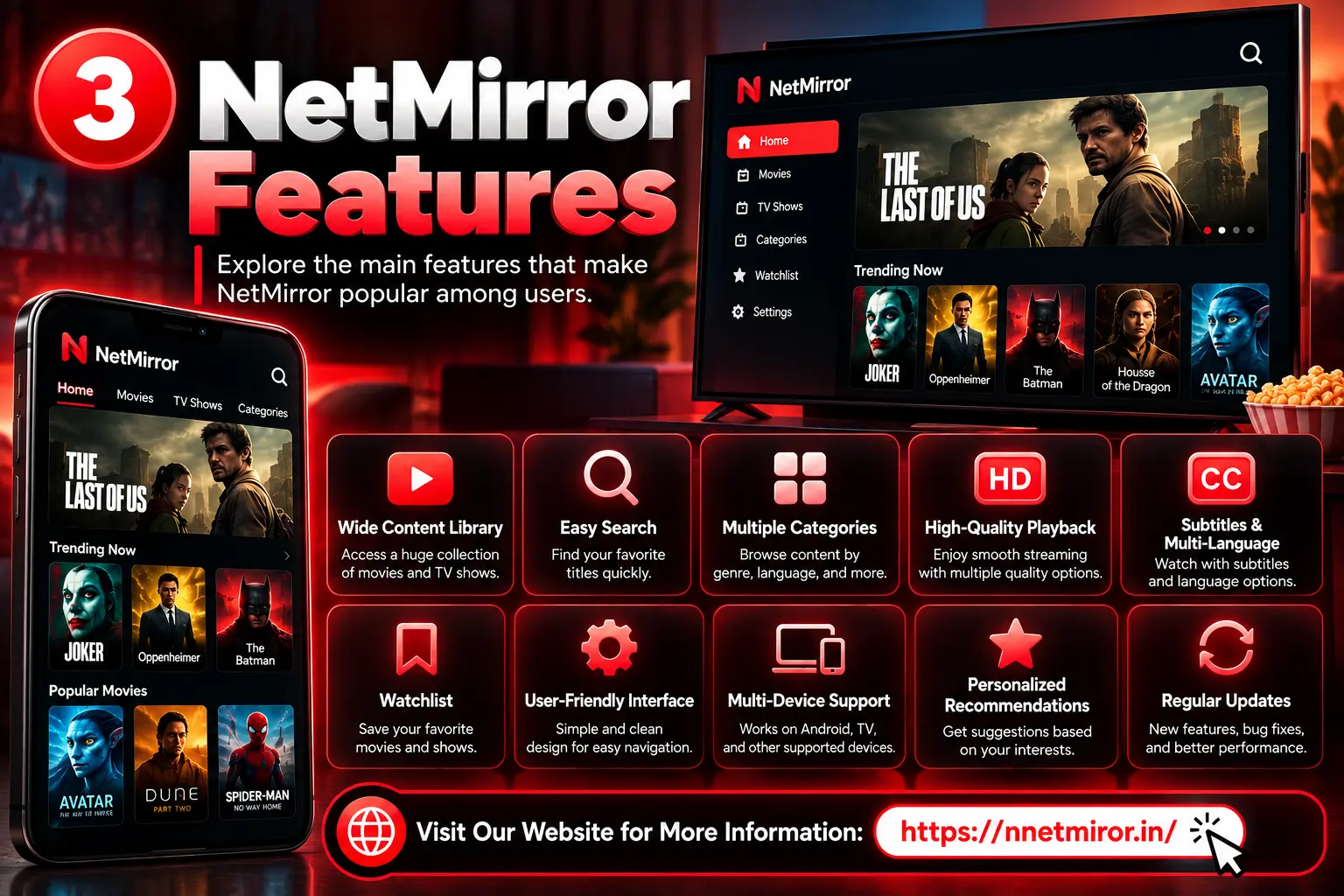
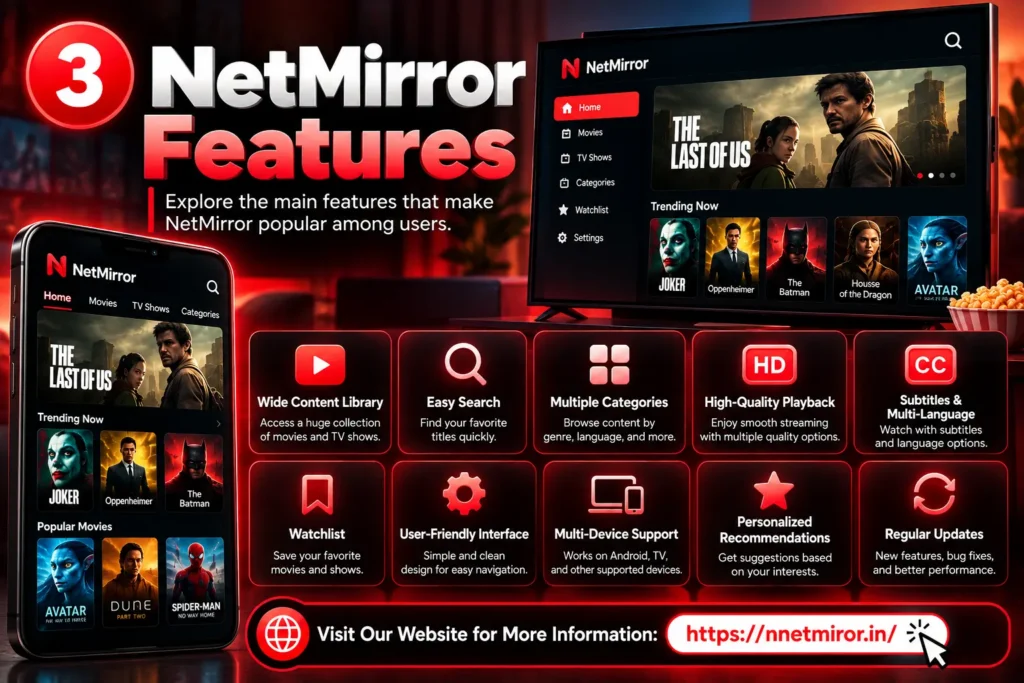
netmirror app focuses primarily on making entertainment discovery convenient for users. Its interface can help users browse available movies and shows without requiring complicated navigation. Search and category options can be particularly useful when users already know what they want to watch.
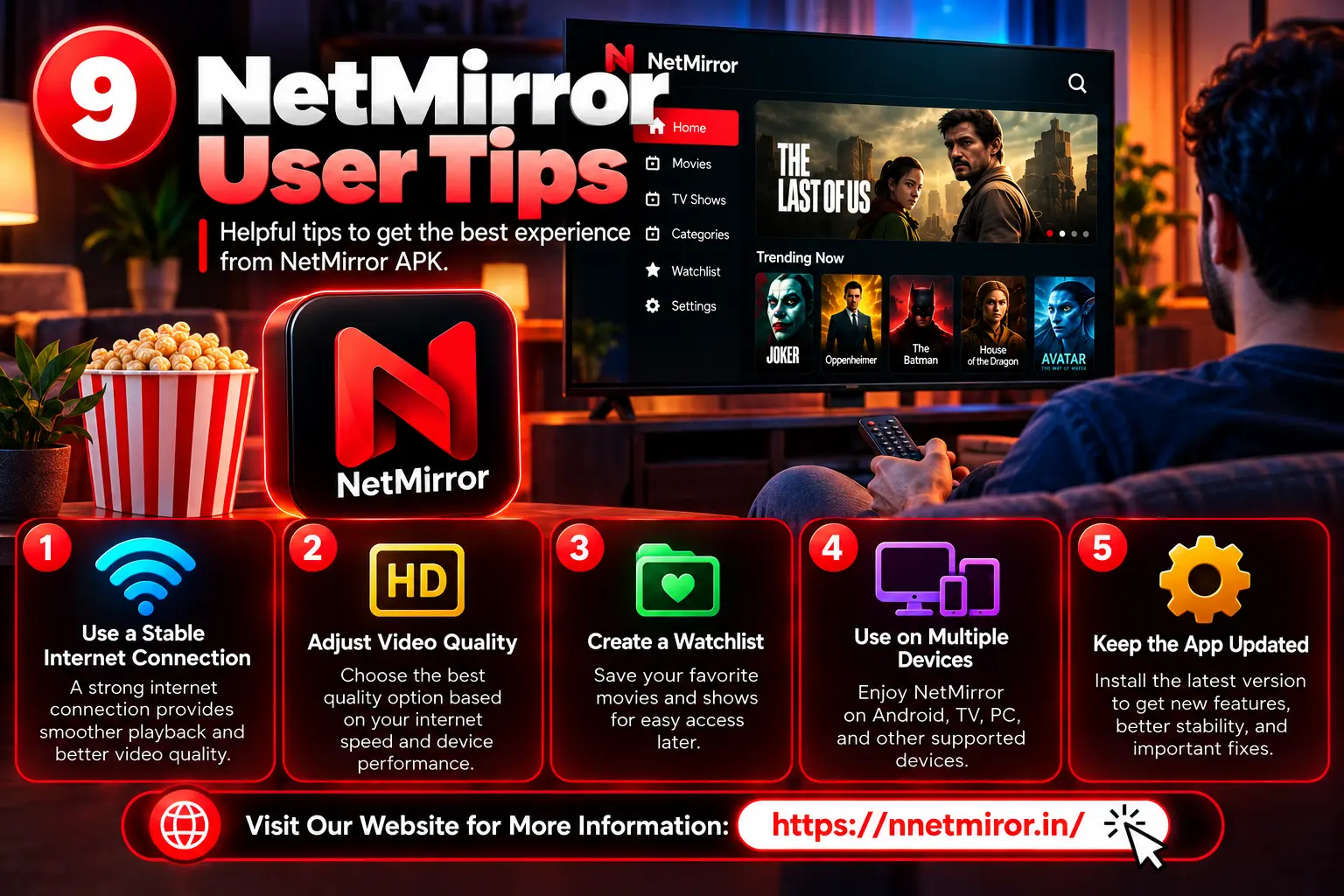
Playback is another important part of the overall experience. Video quality and loading speed can depend on the available source, internet connection, and device performance. A stable connection generally provides a smoother experience, while slower networks can result in buffering or longer loading times.
Depending on the current version, users may also find features such as subtitles, language options, watchlists, content recommendations, or continue-watching functionality. These features can make regular browsing more convenient, but availability should always be confirmed in the installed version.
The interface also plays an important role in everyday use. Clear navigation allows users to move between categories, search results, and content pages more easily. A well-organized interface is particularly useful on televisions, where navigation can be less convenient than on a touchscreen device.
Simple Content Discovery
NetMirror makes content discovery easier through a straightforward entertainment interface. Users can browse available movies, shows, and categories without dealing with unnecessarily complicated menus. The NetMirror app experience is designed around convenient navigation, helping users move between different sections and find relevant entertainment with fewer steps on compatible devices.
Organized Movie Browsing
Browsing becomes more convenient when entertainment content is properly organized. NetMirror movie browsing can help users explore available titles through structured sections and content categories. Instead of manually searching through unrelated listings, users can move through the available library and identify movies according to their preferred viewing interests and available content.
TV Show Discovery
Series-focused browsing gives users another way to explore entertainment. NetMirror TV shows can be organized into dedicated sections, making episodic content easier to locate. Users can move between movie and series categories according to their preferences. The exact content available can vary depending on the current application version and service environment.
Fast Content Search
Searching manually through a large content collection can take unnecessary time. NetMirror search functionality provides a more direct way to locate available titles when supported by the current release. Users can enter relevant names or keywords rather than continuously scrolling through categories, making content discovery more efficient on compatible devices.
Category-Based Navigation
Categories can simplify entertainment browsing by grouping similar content together. NetMirror categories may help users explore different genres or content sections from one interface. This structure is particularly useful for people who do not already have a specific title in mind and prefer discovering something interesting through organized browsing options.
User-Friendly Interface
A clean interface can significantly influence the overall application experience. NetMirror APK provides an interface intended for straightforward interaction across compatible environments. Clear navigation elements can make common actions easier to understand, especially for first-time users. Interface details may change between releases as the application continues to evolve.
Mobile-Friendly Experience
Smartphones remain an important entertainment platform for many users. NetMirror for Android can provide a mobile-oriented experience where the current release supports compatible Android devices. Touch navigation makes browsing practical, while the phone format allows users to access supported entertainment without depending on a television or desktop computer.
Tablet Viewing Support
Larger mobile displays can provide a more comfortable browsing experience. NetMirror Android users with compatible tablets may benefit from additional screen space for menus and entertainment content. Tablet behavior can vary according to Android version, display configuration, and application release, so users should verify compatibility before expecting identical performance.
Large-Screen TV Experience
Television viewing offers a different experience compared with smartphones. NetMirror for Android TV is aimed at compatible TV environments where the application can operate correctly. Larger displays can make longer viewing sessions more comfortable, while remote-based navigation provides a television-focused interaction method when supported by the installed release.
Google TV Compatibility
Google TV provides a modern interface designed specifically for television entertainment. NetMirror Google TV usage depends on the compatibility of the current release with the user’s device. When supported, users can access the application through a large-screen environment and navigate available sections using the television’s remote controls.
Flexible Playback Experience
Playback quality depends on several factors, including the available content, network connection, device hardware, and application implementation. NetMirror stream users can adjust their viewing approach according to available options. A stable connection and suitable device environment can help create a smoother experience during supported online playback sessions.
Subtitle Support
Subtitles can improve accessibility for viewers who prefer reading dialogue or watching content in another language. NetMirror subtitles depend on the specific content and current application implementation. When available, users can check playback controls for language or subtitle options and select the preferred setting where the feature is provided.
Language-Based Viewing
Multilingual entertainment can make content more accessible to different audiences. NetMirror language options depend on the available content and current release. Where multiple language choices are provided, users may be able to select an appropriate audio or subtitle option. Availability should always be checked individually because language support can differ between titles.
Continue Watching Convenience
Finding previously viewed content can be inconvenient without organized viewing history. NetMirror watch online users may benefit from continuation features when supported by the current application. Such functionality can make it easier to return to previously started entertainment rather than searching for the same title again from the beginning.
Watchlist Organization
A watchlist can help users organize entertainment they want to revisit later. NetMirror app download users can look for watchlist functionality within the current release where available. Saving preferred titles can make future browsing easier and reduce the need to remember names or repeatedly search through large content sections.
Personalized Content Discovery
Personalization can make large entertainment libraries easier to navigate. NetMirror streaming experiences may include recommendations or organized suggestions depending on the current implementation. Such features can help users discover content related to their viewing interests, although recommendation behavior and available personalization tools may change between different application releases.
Multiple Device Options
Entertainment preferences vary between phones, televisions, tablets, and computers. NetMirror for phone provides a mobile-focused option, while compatible TV or PC environments may offer different viewing experiences. Users should select the method that matches their device and verify platform compatibility rather than assuming every NetMirror release works identically everywhere.
Android APK Flexibility
APK distribution provides Android users with another application installation method. NetMirror APK download searches are common among users looking for a compatible release outside traditional app marketplaces. Because third-party APK files can differ, users should verify the source, version information, compatibility, and file integrity before opening an unfamiliar package.
Easy Application Updates
Software updates can address compatibility problems and introduce changes to the application experience. NetMirror latest version users should compare their installed release with reliable current version information before updating. A compatible update may replace an existing installation directly, although package differences or device limitations can sometimes require additional troubleshooting.
Version Information
Knowing the installed release helps users troubleshoot compatibility problems. NetMirror latest version searches often reflect the need for accurate version information. Users should check their current application details before installing another APK. Comparing version numbers can prevent accidentally replacing a newer installation with an older or incorrectly labeled package.
Lightweight Navigation
Efficient navigation is important when an entertainment application contains multiple sections. NetMirror app users can benefit from clear menus that reduce unnecessary movement between categories, search tools, and available titles. A simple navigation structure can be especially helpful on smaller screens where excessive interface elements can make browsing less comfortable.
Cross-Screen Viewing
Different users prefer different screen sizes for entertainment. NetMirror TV APK searches reflect interest in larger-screen viewing, while Android phones remain useful for portable access. Compatible releases can provide different experiences depending on the platform. Users should always check device-specific compatibility instead of assuming that one APK behaves equally across every screen.
Remote-Friendly Navigation
Television applications require interaction through remotes rather than touchscreens. NetMirror for TV users should look for interfaces that respond properly to directional buttons and selection controls. Remote-friendly navigation can make browsing categories and selecting content more comfortable, particularly when the application is being used from a couch or viewing distance.
Search-Friendly Entertainment
Finding a particular title becomes easier when users can search instead of browsing every category. NetMirror movie searches can be useful for viewers who already know what they want to watch. Search behavior depends on the current application release and available content, so users should not expect identical results across every version.
Device Compatibility Awareness
Every Android device has different hardware and software characteristics. NetMirror for Android compatibility can depend on Android version, storage, processor architecture, and other device factors. Checking these requirements before installation helps users avoid unnecessary errors. Compatibility should be evaluated for the specific release rather than assumed from the application name alone.
Playback Troubleshooting Controls
Streaming problems can sometimes be investigated through available playback and device settings. NetMirror stream users experiencing buffering should first check network stability and device resources. Where playback controls are available, adjusting suitable quality settings may help. However, application changes cannot resolve every network or service-side problem.
Offline-Oriented Convenience
Offline viewing depends on whether the current NetMirror release genuinely provides a supported download function. NetMirror APK users should verify this feature rather than assuming every version includes it. When legitimate offline functionality exists, downloaded content can reduce dependence on continuous connectivity during later viewing sessions.
Accessible Entertainment Layout
An accessible interface can make browsing easier for different types of users. NetMirror online users benefit when menus, content labels, and playback controls remain understandable across supported screens. Font size, contrast, navigation structure, and device display settings can all influence accessibility, so the final experience may vary between devices.
Regular Release Improvements
Applications can change over time through new releases and maintenance updates. NetMirror update information helps users understand whether their installed version is current. Updates may address bugs, compatibility, or interface behavior, although changes vary between releases. Users should verify release details before installing files advertised as newer versions.
Practical Entertainment Management
Managing an entertainment application involves more than simply opening videos. NetMirror download users can benefit from understanding storage, permissions, updates, compatibility, and network requirements. Keeping these areas organized can reduce common problems and create a more reliable experience across supported devices, whether users prefer mobile, television, or desktop viewing.
How to Download NetMirror APK
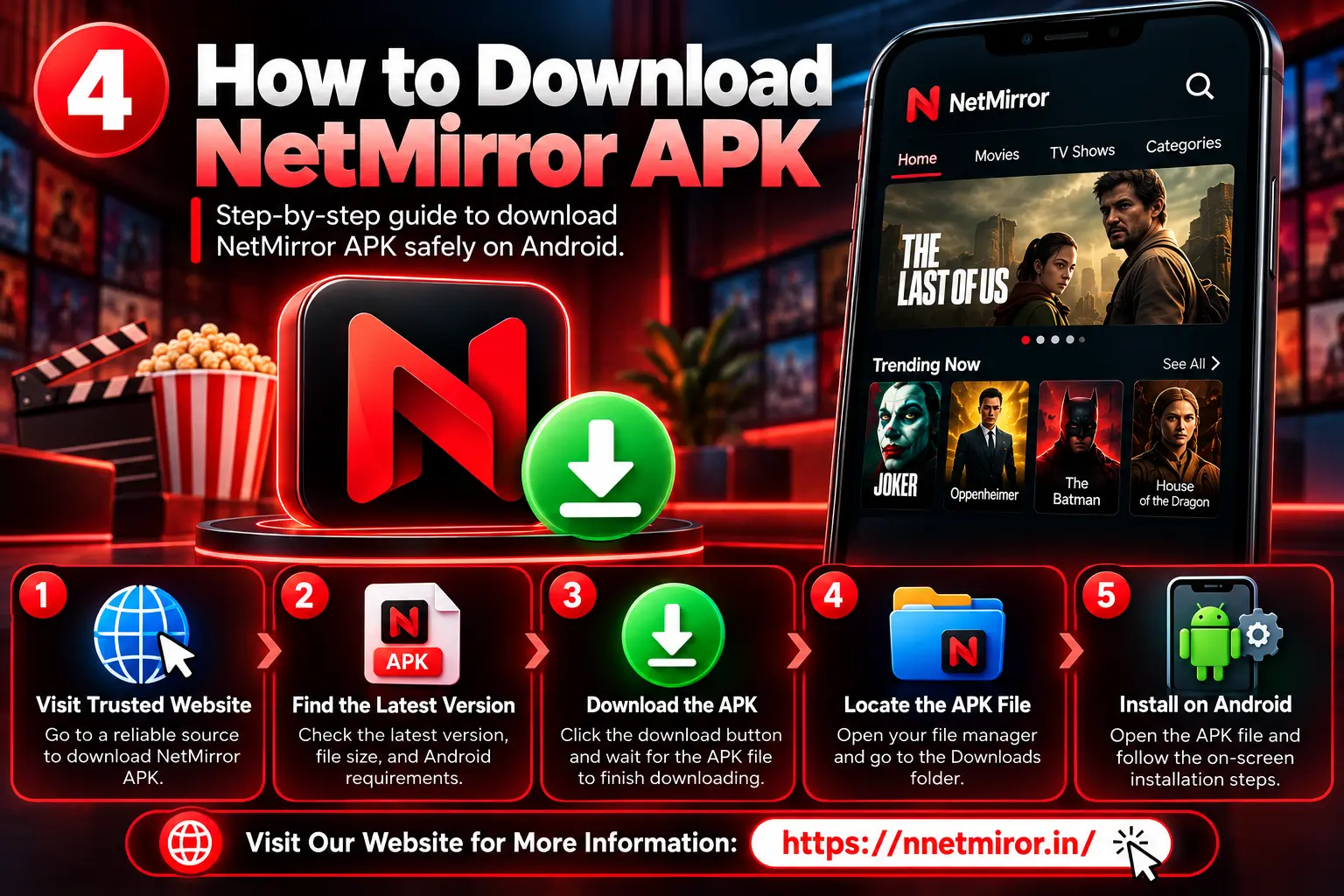
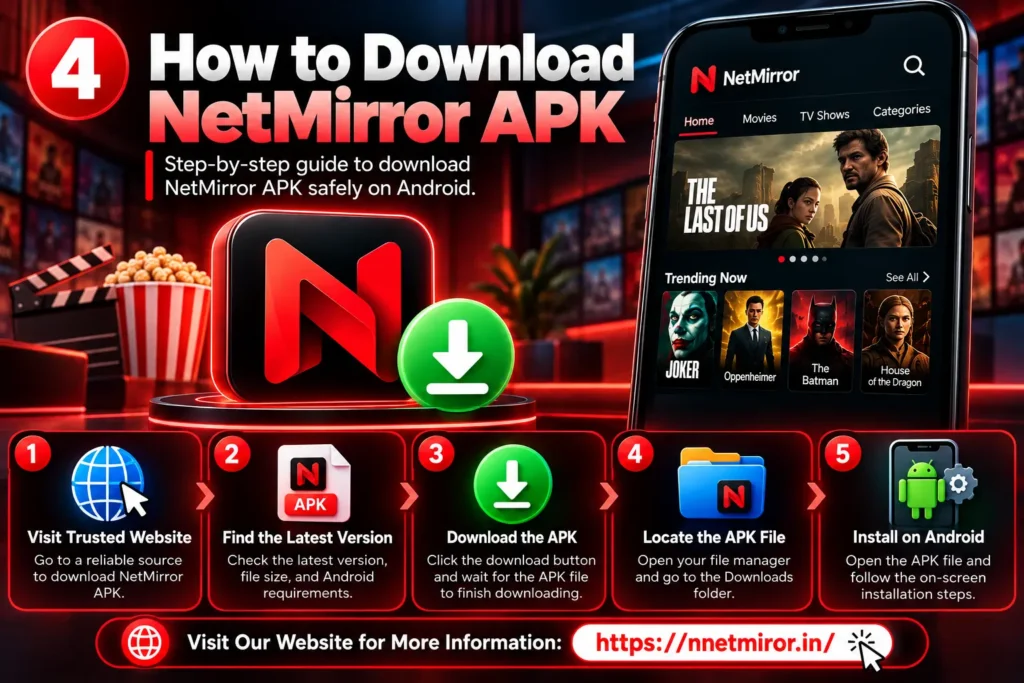
Downloading NetMirror APK should begin with checking the file source and version information. Users should avoid clicking random advertisements or downloading files from websites that provide unclear information about the APK. A trustworthy download page should clearly identify the application and provide relevant version details.
Once the compatible APK has been downloaded, users can locate the file through their Android device’s file manager. The installation process may require permission for applications obtained outside Google Play. Android displays its own security prompts during this process, and users should review them carefully before continuing.
Downloading and installing NetMirror APK on an Android device involves fetching the installation file from a web source and completing a manual setup.
Prerequisites Before Downloading
- Check Device Compatibility: Ensure your device runs Android 5.0 (Lollipop) or higher.
- Enable Unknown Sources:
- Open your device Settings.
- Navigate to Apps & Notifications (or Security & Privacy).
- Select Special App Access > Install Unknown Apps.
- Choose your browser (e.g., Chrome) or File Manager and toggle Allow from this source to ON.
Step-by-Step Download and Installation Guide
- Locate a Verified Web Source: Open your web browser and search for the latest NetMirror APK build (v6.1).
- Download the File: Click the download button to save the
.apkfile (file size is approximately 49 MB to 56 MB) to your device storage. - Scan the File: Run the downloaded
.apkthrough a web scanner like VirusTotal to verify security before opening. - Run the Installer:
- Open your device File Manager.
- Go to the Downloads folder.
- Tap the NetMirror_v6.1.apk file.
- Complete Setup: Tap Install on the prompt. Once completed, tap Open to launch the app.
- Verify Success: Launch NetMirror to confirm the media feed loads without instant crash or network timeout prompts.
Safety Guidelines
- Only download APK files from reputable web repositories.
- Avoid granting unnecessary permissions (such as access to contacts, SMS, or phone calling) during installation.
- Use a trusted mobile antivirus tool to keep your device protected when installing external APK files.
After installation, users can open NetMirror and check whether the application works correctly on their device. If the application fails to open, crashes, or displays compatibility problems, the device requirements and APK version should be checked again.
How to Install NetMirror APK on Android
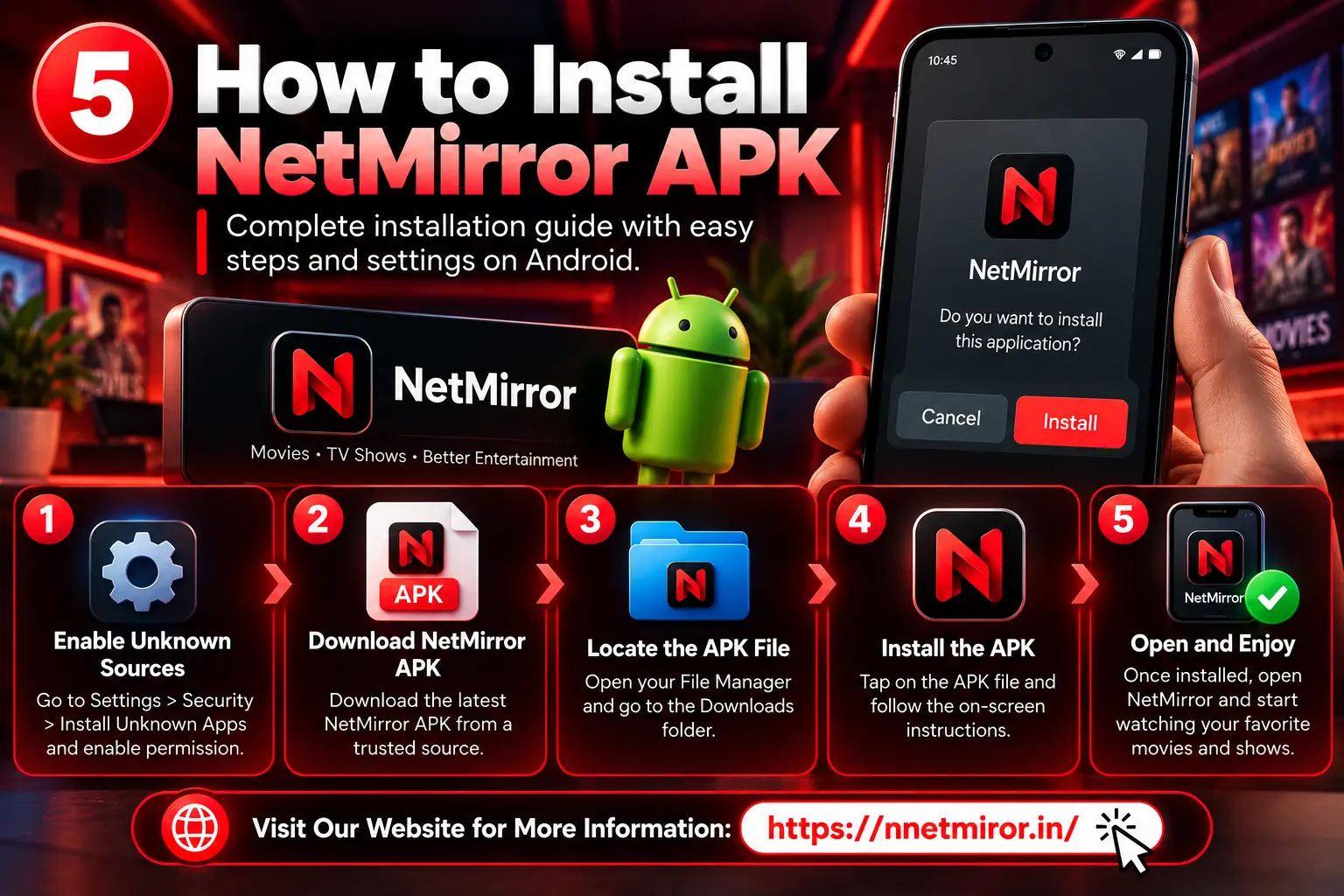
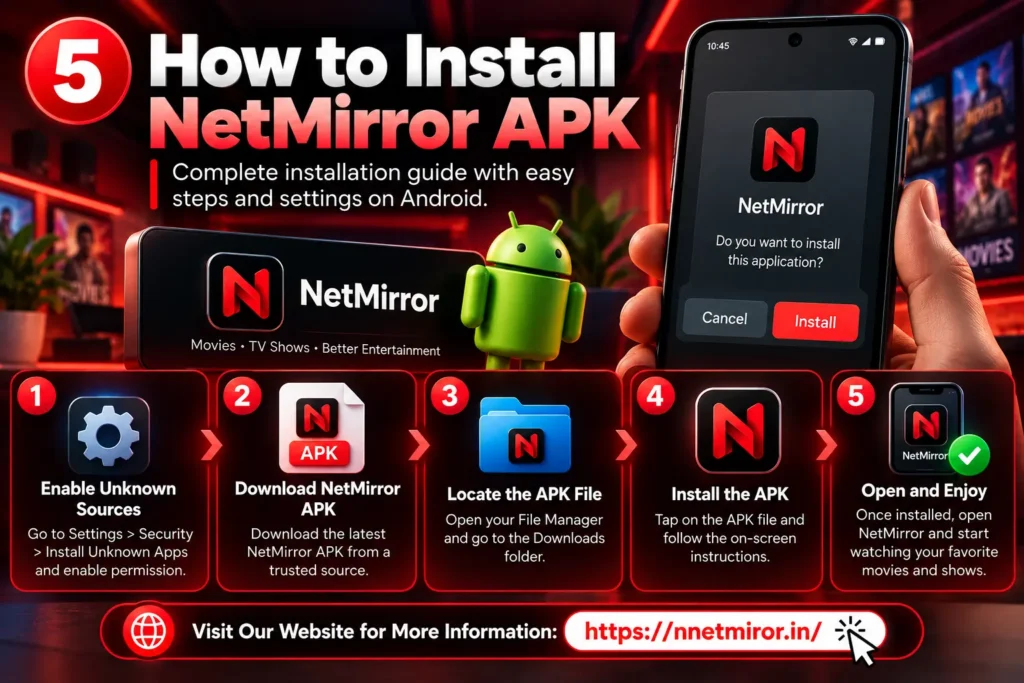
Installing NetMirror on an Android phone is generally straightforward when the APK is compatible with the device. After downloading the file, open the download location and select the APK. Android may ask for permission to install applications from the relevant external source.
After granting the required permission, return to the APK file and start the installation. Wait until Android completes the process before opening the application. Once installed, launch netmirror apk download and check its interface, available options, and basic functionality.
Users should avoid installing multiple APK versions over one another without understanding compatibility. Keeping unnecessary versions on the device can also consume storage space. If an installation fails, removing an incompatible version and checking the Android requirements can often help identify the problem.
Installing NetMirror APK on an Android phone or Smart TV requires enabling unknown sources, fetching the APK file, and completing a quick setup process.
Step 1: Enable Unknown Sources
Before installing an APK file outside the Google Play Store, allow your device to install external applications.
- Android 8.0 and newer:
- Go to Settings > Apps & Notifications (or Security & Privacy).
- Tap Special App Access > Install Unknown Apps.
- Select your browser (e.g., Chrome) or File Manager and toggle Allow from this source to ON.
- Android 7.0 and older:
- Go to Settings > Security.
- Enable Unknown Sources.
Step 2: Download and Install NetMirror APK
- Open your web browser and download the latest NetMirror APK file from a verified source.
- Open your device’s File Manager and navigate to the Downloads folder.
- Tap the
.apkfile and select Install. - Once completed, tap Open or find netmir in your app drawer.
- Verification Check: Open the app and verify that the home feed loads correctly without instant crash prompts.
Essential Tips for Smooth Performance
- Use a Security Scanner: Run the downloaded
.apkfile through a malware scanner (such as VirusTotal) before tapping install to ensure the file is uncorrupted and safe. - For Android TV / Firestick: Use the Downloader App from the Play Store/Amazon Appstore to enter the direct APK URL, or use tools like Send Files to TV or atvTools to transfer the APK directly from your phone.
- Clear Cache on Playback Errors: If video playback stalls, go to Settings > Apps > NetMirror > Storage and tap Clear Cache.
- Network & Mirroring: Ensure your phone and Smart TV are connected to the exact same Wi-Fi network for smooth Chromecast and screen-mirroring features.
NetMirror on Android TV
NetMirror may also be searched by users who want to access entertainment content on a larger television screen. Android TV devices have different interfaces and hardware configurations than mobile phones. Therefore, an APK that works on a phone may not always provide the same experience on a television.
Before installing net mirror apk on Android TV, users should check whether the current release supports their television’s Android version. They should also confirm that the APK can be installed using an appropriate method. After installation, navigation should be tested with the television remote to ensure the interface is usable.
NetMirror on PC
NetMirror APK files are intended for Android environments rather than standard Windows applications. A Windows or Mac computer cannot normally install an Android APK directly. Users who want to test an Android application on a computer may therefore need a compatible Android environment or emulator.
Performance can vary considerably between different computers and emulator configurations. RAM, processor performance, graphics capability, and emulator settings can all affect the experience. Users should therefore avoid assuming that every PC will provide the same performance as an Android device.
NetMirror System Requirements
NetMirror performance depends on several technical factors. The Android version is one of the most important considerations because newer application releases may require newer operating-system features. Sufficient storage is also necessary for installation and normal device operation.
A stable internet connection is important when using streaming-related functionality. Network speed and stability can affect loading times and playback quality. Device RAM and processor performance can also influence how smoothly the application operates, particularly when several applications are running simultaneously.
| Parameter | Android Mobile & Tablet | Android TV / Firestick | PC (via Emulator) | PC (Web / Browser) |
| Operating System | Android 5.0 (Lollipop) or higher | Fire OS 6.0+ / Android TV 7.0+ | Windows 10/11 or macOS 11+ | Windows 8.1+, macOS, or Linux |
| RAM (Memory) | 2 GB minimum (3 GB recommended) | 1.5 GB minimum (2 GB recommended) | 4 GB minimum (8 GB recommended) | 2 GB minimum |
| Storage Space | 100 MB free space | 150 MB free space | 5 GB free space (for Emulator) | 200 MB free browser cache space |
| Processor (CPU) | Quad-Core 1.5 GHz or higher | Quad-Core 1.5 GHz (Amlogic/MediaTek) | Dual-Core Intel/AMD with VT-x/AMD-V enabled | Dual-Core 2.0 GHz or higher |
| Display Resolution | 720p HD minimum (1080p recommended) | 720p HD minimum (4K TV supported) | 1280×720 minimum | 1280×720 minimum |
| Internet Speed | 5 Mbps for HD / 25 Mbps for 4K | 5 Mbps for HD / 25 Mbps for 4K | 5 Mbps for HD / 25 Mbps for 4K | 5 Mbps for HD / 25 Mbps for 4K |
| Key Permissions / Dependencies | “Install Unknown Apps” permission enabled | Downloader App + Unknown Sources enabled | BlueStacks / LDPlayer installation | Updated Chrome, Firefox, or Edge browser |
Is NetMirror Safe?
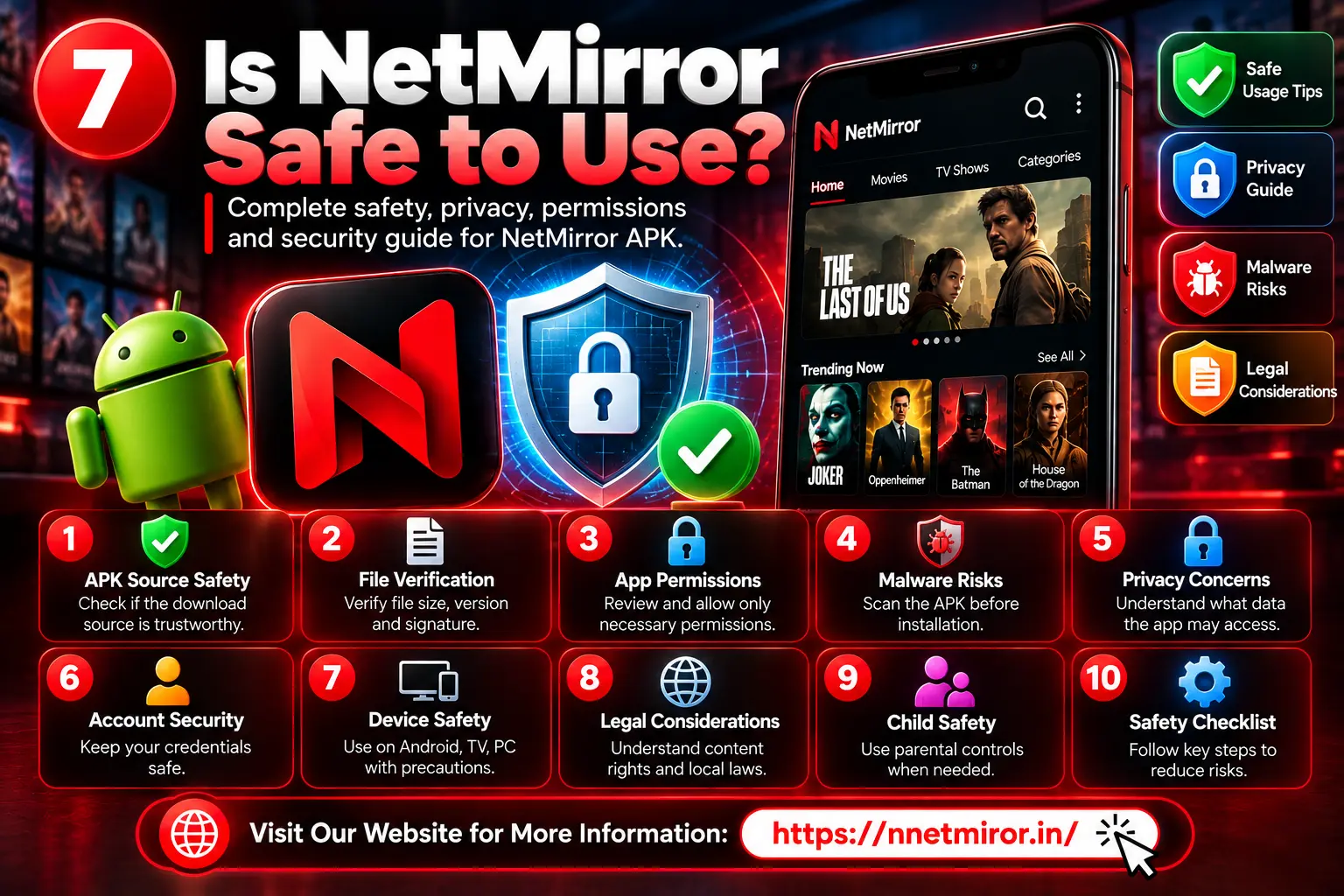
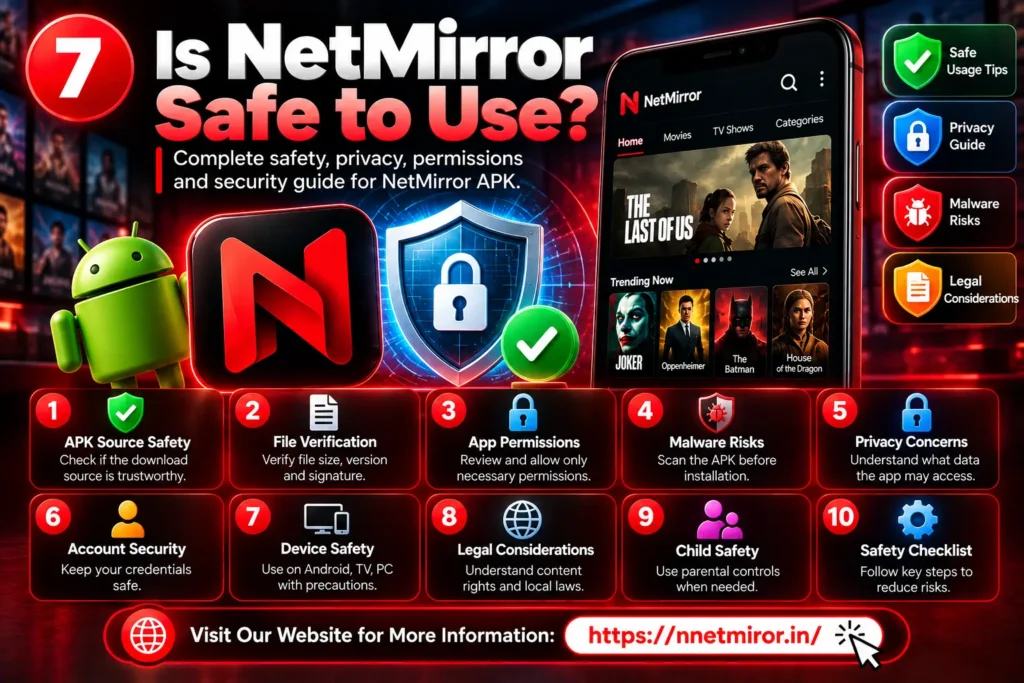
The safety of any APK depends partly on where the file comes from and what permissions it requests. Users should avoid treating every APK available online as automatically safe. Before installation, they should review the download source, file information, requested permissions, and available security information.
It is also important to keep Android and device security features updated. Users should avoid granting unnecessary permissions and should be cautious when an application requests access unrelated to its apparent purpose. If a downloaded file behaves unexpectedly, it is better to stop using it and investigate the source.
NetMirror Privacy
Privacy should be considered whenever an application is installed from outside an official application store. Users should understand what information an application may request and whether an account or personal information is required. Unnecessary permissions should not be granted simply to make an application work.
Users should also remember that privacy policies and application behavior can change between releases. Checking current information before installation is therefore more useful than relying on old descriptions found elsewhere.
NetMirror Pros and Cons
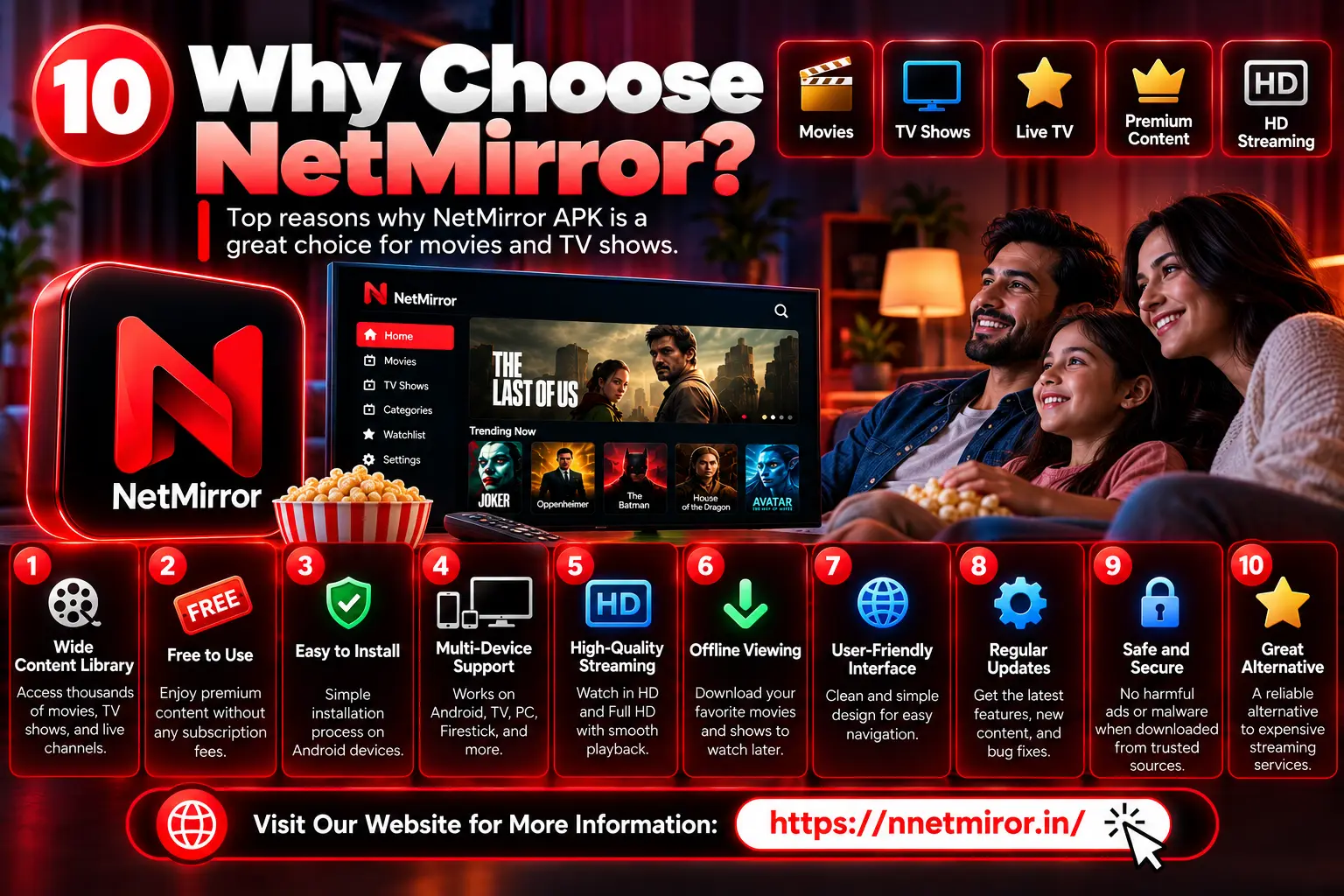
NetMirror can be convenient for users who prefer a simple entertainment-focused interface and flexible browsing experience. Its potential advantages include straightforward content discovery, mobile accessibility, and compatibility with certain larger-screen Android devices.
However, users should also consider possible limitations. Compatibility can vary between devices, APK sources may differ in reliability, and playback can depend on internet and content availability. External APK installation also requires more attention than installing an application through an official store.
Pros
- 100% Free Access: Stream movies, web series, and TV shows without requiring paid subscriptions, monthly plans, or credit card details.
- No Registration Required: Start streaming immediately without creating an account or revealing personal sign-in credentials.
- User-Friendly UI: Designed with a clean, Netflix-inspired interface that makes content discovery and navigation straightforward.
- Multi-Device Compatibility: Works across Android smartphones, tablets, Android TV, Google TV, and Amazon Firestick devices.
- Built-in Player Features: Offers video controls like closed captions (subtitles), audio track/language selection, adjustable video quality, and playback speed customization.
- Casting & Mirroring Support: Supports Chromecast to easily cast media streams from a phone directly to a television setup.
Cons
- Security & Malware Risks: Third-party APK files flagged by malware scanners (like VirusTotal) can present privacy vulnerabilities, WebView credential harvesting, or intrusive system background requests.
- Copyright & Legal Issues: Hosts and streams unlicensed copyrighted content, making usage potentially illegal depending on regional copyright and streaming laws.
- Missing from Official Stores: Cannot be downloaded through the Google Play Store or Apple App Store, requiring manual sideloading and manual update installs.
- Stream Instability: Servers frequently experience buffering, link drops, or playback crashes during peak viewing hours.
- No Direct iOS Support: Workarounds on iPhone/iPad (such as WebView wrappers) often break or fail to stream content properly.
NetMirror vs Other Streaming Platforms
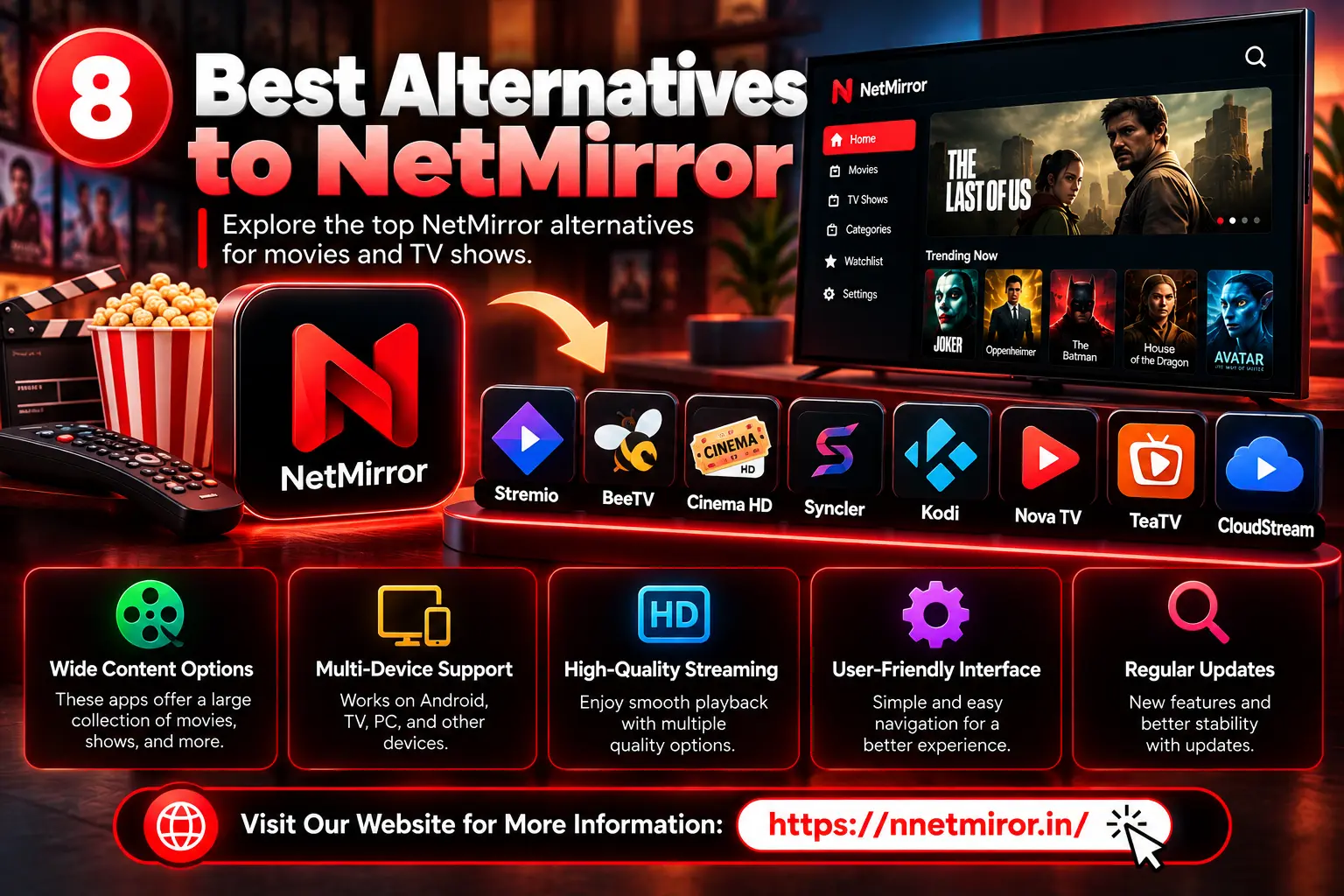
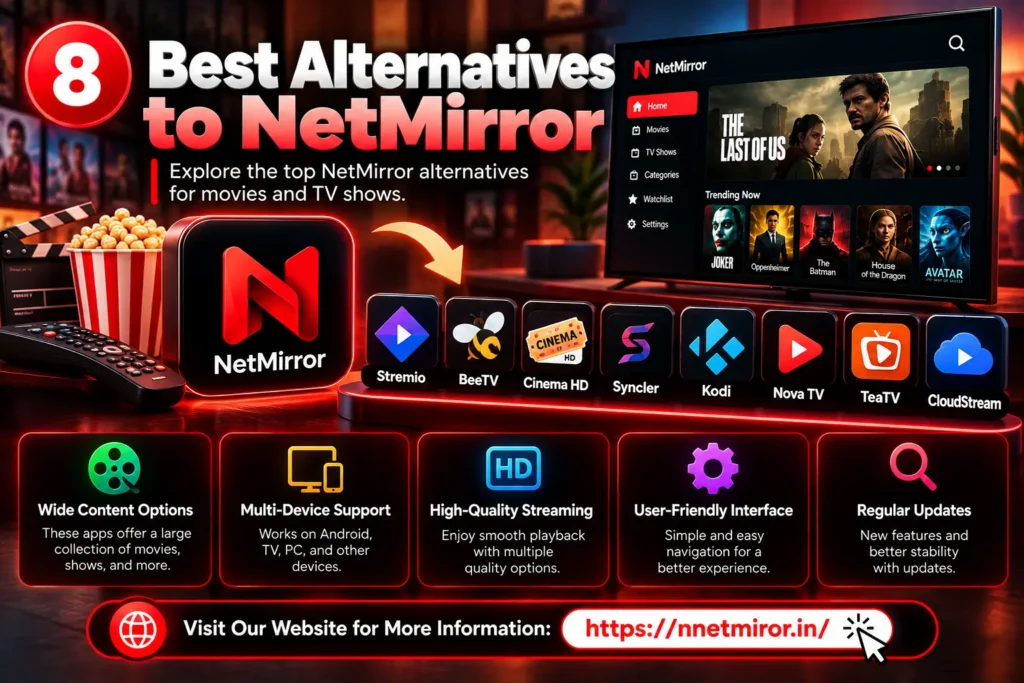
NetMirror should be evaluated according to the features and access options a user actually needs. Official streaming services generally provide clearly defined subscriptions, supported applications, customer support, and licensed content libraries. Third-party applications can have different availability, compatibility, and security considerations.
Here is a detailed comparison of NetMirror APK against major official subscription services and popular third-party streaming apps:
| Feature / Metric | NetMirror APK | Official Platforms (Netflix, Prime Video, Disney+) | Free Official Services (Tubi, Pluto TV) | Third-Party APKs (Cinema HD, Pikashow) |
| Pricing | 100% Free | Subscription ($7 – $23+/month) | 100% Free (Ad-supported) | 100% Free |
| Account Requirement | None | Required | Optional | None |
| Content Library | Multi-source OTT aggregator (Netflix, Prime, Disney+, Hotstar) | Exclusive, native platform content | Studio catalog (older movies, live TV channels) | Multi-source web scraping |
| Video Quality | 720p – 1080p (4K limited) | Up to 4K UHD, HDR, Dolby Vision | 720p – 1080p HD | 720p – 1080p HD |
| Official App Stores | ❌ No (Third-party sideloading) | ✅ Yes (Play Store, App Store, Smart TV Stores) | ✅ Yes (Play Store, App Store, Smart TV Stores) | ❌ No (Third-party sideloading) |
| Ad Experience | Minimal to Moderate | Ad-free or minimal on base tiers | Periodic commercial breaks | Moderate to heavy pop-up ads |
| Device Support | Android, Android TV, Firestick, PC (via Emulator) | Android, iOS, Smart TVs, Web, Consoles, Streaming Sticks | Android, iOS, Smart TVs, Web, Consoles | Android, Android TV, Firestick |
| Offline Downloads | Limited / Inconsistent | ✅ Supported (Mobile/Tablet app downloads) | ❌ Unsupported | Limited / Inconsistent |
| Legal & Safety Status | Unlicensed / Sideloading risks | 100% Legal & Verified | 100% Legal & Safe | Unlicensed / Sideloading risks |
For this reason, users should compare services based on content availability, device support, pricing, privacy practices, reliability, and legal availability in their region. No single application is necessarily the best choice for every viewer.
Common NetMirror Problems
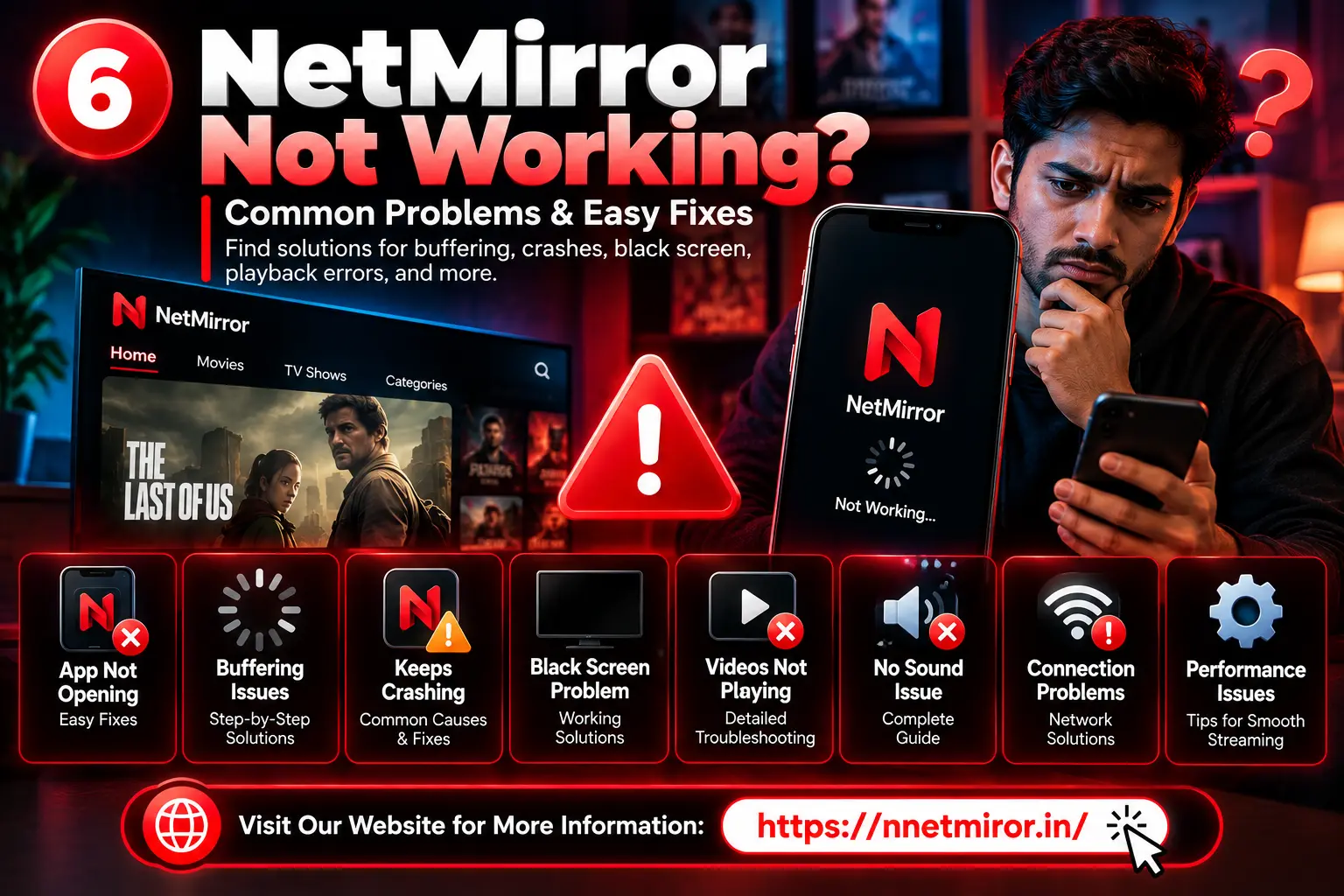
Some users may experience installation or playback problems after installing an APK. NetMirror may fail to open when the application is incompatible with the Android version, while crashes can occur because of device limitations or installation problems. Checking the current version and device requirements is a useful first step.
Buffering is usually related to network stability, source availability, or playback quality. Users can test their internet connection and try an appropriate video quality when such options are available. Restarting the application can also help identify whether the problem is temporary.
If an APK does not install, users should check available storage, Android compatibility, file integrity, and installation permissions. Downloading a fresh copy from a trustworthy source can also help when the original file appears incomplete or corrupted.
Frequently Asked Questions
What is NetMirror APK?
NetMirror APK is the Android installation package associated with the netmirror login application. It can be used to install the application manually on compatible Android devices when distributed outside Google Play.
Is NetMirror free?
Availability and access conditions can vary by the current application version and source. Users should check the current application information before assuming that every feature is free.
Can I install NetMirror on Android TV?
Compatibility depends on the current NetMirror release and the Android TV device. Users should check the Android version and installation requirements before installing the APK.
Can I use NetMirror on a PC?
An Android APK is not normally a native Windows or Mac application. PC users may require a compatible Android environment or emulator if the current application supports that method.
Why is NetMirror APK not installing?
Installation problems can result from incompatible Android versions, insufficient storage, corrupted files, or blocked external installation permissions. Checking each of these factors can help identify the problem.
Why is NetMirror buffering?
Buffering can occur because of an unstable internet connection, high playback quality, source availability, or device performance. Testing the connection and adjusting available playback settings may help.
Is NetMirror safe?
Safety depends on the specific APK source, application version, permissions, and device environment. Users should verify the file source and review permissions before installing any third-party APK.
Final Thoughts
NetMirror can be an interesting option for users looking for a straightforward entertainment browsing experience on compatible devices. Its usefulness depends on the current application version, available content, device compatibility, and overall playback performance.
Before downloading NetMirror APK, users should verify the file source and check their device requirements. They should also keep their device security features updated and avoid unnecessary permissions. Taking these simple precautions can make the installation process more informed and reduce avoidable compatibility or security problems.
For the best experience, always use a compatible version and check current information before installing an APK. If netmirror apk online does not work correctly, reviewing the device requirements, installation method, network connection, and application version can help identify the underlying issue.