NetMirror TV APK 6.1 Download Free for Android Latest version
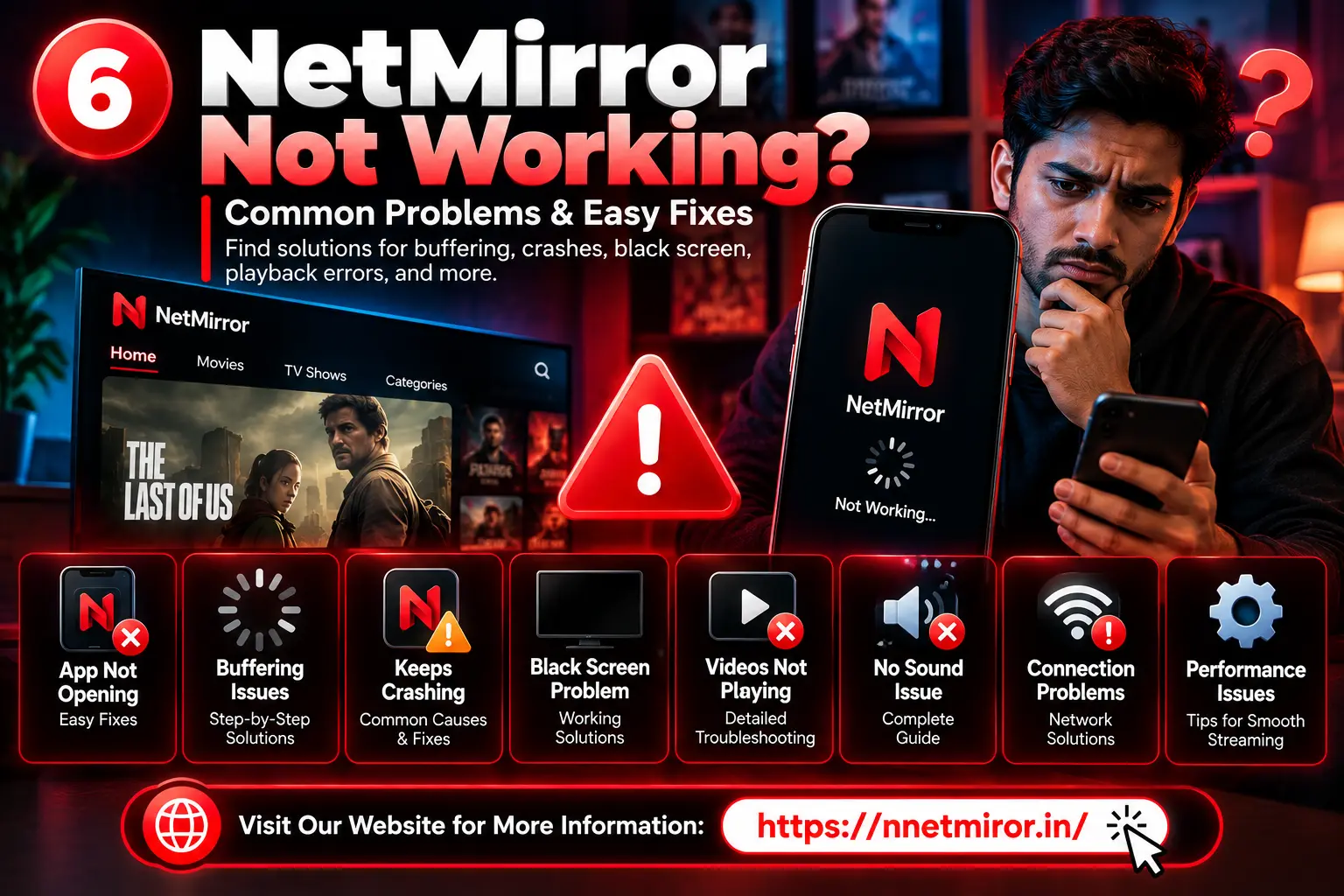
NetMirror Not Working? Common Problems & Easy Fixes
When NetMirror is not working, the cause is not always the application itself. Internet problems, device compatibility, outdated software, corrupted cache, storage limitations, and temporary service issues can all affect performance.
Some problems appear immediately after installation. Others develop after an update or while streaming content. Identifying the exact symptom makes troubleshooting much easier.
This guide covers the most common NetMirror problems and practical solutions. It explains what to check when NetMirror will not open, keeps crashing, buffers, shows a black screen, fails to play videos, or stops responding.
The goal is to identify the simplest possible solution before reinstalling the application.
Why Is NetMirror Not Working?
NetMirror can stop working for several different reasons. A weak connection can prevent content from loading, while insufficient storage can affect application behavior.
An incompatible release can also cause crashes after an Android update. Corrupted temporary data may create loading problems even when the application itself is compatible.
| Issue / Error Symptom | Potential Cause | Quick Fix / Action Required | Verification Step |
| “Network Error” / Infinite Buffering | Corrupted app cache or unstable Wi-Fi connection. | Clear app cache (Settings > Apps > NetMirror > Clear Storage/Cache) or reboot router. | Re-open the app to check if media cards load without spinning icons. |
| Black Screen During Playback | Hardware decoding failure or emulator rendering mismatch. | Switch emulator rendering engine to OpenGL/DirectX or toggle HW Acceleration off. | Play any video stream to verify audio and video sync without a blank screen. |
| App Keeps Crashing / Force Closing | Outdated app version or signature mismatch. | Uninstall the legacy build, restart your device, and reinstall the fresh APK build. | App opens directly to the main library dashboard without unexpected closures. |
| “App Not Installed” Error | Conflicts with existing build, low storage, or Play Protect block. | Free up 150MB+ space, disable Play Protect, and clear old app leftovers. | Run the .apk package installer again to confirm successful installation. |
| Server Timeout / Blackout | Web mirror domain changes or active server maintenance. | Switch to an active web mirror domain or toggle a VPN connection. | Access the official web mirror URL in a browser to check if servers are live. |
| Casting / Mirroring Disconnects | Source and target devices are on different Wi-Fi bands (2.4 GHz vs 5 GHz). | Connect both mobile/PC and Smart TV to the same Wi-Fi SSID / network band. | Ensure local network discovery allows seamless screen mirroring. |
Start with basic checks before making major changes. Many temporary problems can be resolved without reinstalling anything.
Quick NetMirror Troubleshooting Checklist
Before trying advanced solutions, restart the application and check your internet connection.
Next, restart your device and verify that enough storage is available. Check whether other applications are experiencing similar problems.
If only NetMirror is affected, inspect its application settings and installed version.
These basic steps can quickly identify whether the problem is device-wide or application-specific.
NetMirror Is Not Opening
One of the most common problems occurs when NetMirror refuses to launch.
First, close the application completely and open it again. If it remains unresponsive, restart your device.
Check whether your device has sufficient free storage. Very limited storage can affect application behavior.
You should also check whether the installed NetMirror version is compatible with your Android version. Compatibility problems can prevent an application from launching correctly.
NetMirror Keeps Crashing
Frequent crashes can result from corrupted application data, insufficient memory, or compatibility issues.
Start by closing other applications running in the background. Then restart the device and launch NetMirror again.
If the problem continues, open the application’s Android settings and clear its temporary cache.
If crashes started immediately after an update, investigate whether the new release is compatible with your device.
NetMirror Freezes or Stops Responding
A frozen interface can be caused by temporary memory problems or application processing issues.
Close NetMirror through the device’s recent-applications screen. Wait a few seconds and launch it again.
If the problem occurs repeatedly, restart the device. Also check whether other applications are consuming unusually high system resources.
Persistent freezing may indicate an application compatibility problem rather than a temporary device issue.
NetMirror Is Buffering
Buffering usually indicates that video data is not arriving consistently enough for uninterrupted playback.
Start by checking your internet connection. Run another online service to determine whether the connection is generally working.
If several devices are using the same network, temporary congestion may be responsible.
Move closer to the Wi-Fi router or use a more stable connection when possible. Wired connections can also provide more consistent performance on compatible devices.
How to Reduce NetMirror Buffering
Reducing network activity can sometimes improve playback.
Pause large downloads and cloud synchronization while streaming. Close applications that are using substantial bandwidth.
If a lower playback quality option is available, test it temporarily. Higher-quality streams generally require more bandwidth.
If buffering occurs only with NetMirror while other services work normally, the issue may be specific to the application or content source.
NetMirror Shows a Black Screen
A black screen can occur when the application loads but video content does not render correctly.
First, restart NetMirror and test another available title if possible. This helps determine whether the issue affects one item or the entire application.
Check your internet connection and restart the device.
On PC environments, graphics settings can also cause display problems when NetMirror runs through an Android emulator.
NetMirror Videos Are Not Playing
If the application opens normally but videos do not start, check the network connection first.
Try another content item to determine whether the problem affects one video or multiple videos.
If all videos fail, restart the application and device. You can also check whether an application update is available.
Persistent playback problems may be caused by service-side conditions rather than your device.
NetMirror Has No Sound
Audio problems are often related to device output settings.
Check the device volume and make sure it is not muted. If Bluetooth headphones or speakers are connected, confirm that audio is being sent to the correct device.
On televisions, check the selected sound output and connected soundbar or receiver.
Testing another application can help determine whether the problem is limited to NetMirror.
NetMirror Subtitles Are Not Working
Subtitle availability can depend on the content and application release.
If subtitles are supported, check the playback controls for language or subtitle settings.
Try another content item to determine whether subtitles are unavailable generally or only for a specific title.
If subtitles appear but are difficult to read, check your device’s display and accessibility settings.
NetMirror Search Is Not Working
Search problems can result from temporary application errors or connectivity issues.
Restart NetMirror and test the search function again. Make sure the application has a stable internet connection.
If browsing works but search does not, the problem may be specific to the search functionality.
Avoid repeatedly reinstalling the application before determining whether the issue affects other features.
NetMirror Is Very Slow
Slow performance can originate from either the device or network.
Check available storage and close unnecessary background applications. Older hardware may also struggle with resource-intensive applications.
If menus are slow but streaming works normally, the issue may involve device performance.
If both menus and playback are slow, investigate the device and internet connection together.
NetMirror Takes Too Long to Load
Long loading times can occur when the network connection is unstable.
Restart the application and test another internet-dependent service.
If the problem occurs only on one network, test a different connection when possible.
Persistent loading delays may also indicate temporary service-side conditions.
NetMirror Login Is Not Working
If the current NetMirror environment provides a login or account feature, authentication problems can have several causes.
First, verify the entered information carefully. Check whether the service is currently reachable.
Do not repeatedly enter sensitive credentials into pages you do not trust.
If login stopped working after an update, verify whether the current release changed account or authentication behavior.
NetMirror Is Not Connecting
Connection problems can be caused by Wi-Fi, mobile data, DNS, router settings, or temporary service conditions.
Check whether other websites and applications can access the internet.
Restart the router if multiple devices are affected. If only NetMirror fails, the issue may be application-specific.
Avoid changing advanced network settings unless you understand their purpose.
NetMirror Server or Service Problems
Sometimes the user’s device is working correctly while the service itself is experiencing temporary problems.
If NetMirror suddenly stops working across multiple devices, compare the behavior across different networks.
A service-side issue may not be fixable from your device. In such situations, repeatedly reinstalling the application is unlikely to help.
Wait for reliable service information before making major changes.
NetMirror APK Is Not Installing
Installation errors can have several causes.
Check whether your Android version supports the APK. Then verify available storage and the integrity of the downloaded file.
An existing NetMirror installation can also conflict with a different package or signing configuration.
Do not immediately download several APK files from unrelated sources. Identify the installation error first.
NetMirror APK Says “App Not Installed”
This Android message commonly indicates a package problem.
Possible causes include incompatible Android versions, insufficient storage, package conflicts, or signature differences.
If an older NetMirror installation exists, determine whether the new APK is designed to update it.
A clean installation may solve some package conflicts, but uninstalling can affect local application data.
NetMirror APK Parse Error
A parse error means Android cannot properly process the package.
The APK may be corrupted, incomplete, incompatible, or designed for an unsupported environment.
Verify the file and check the Android version before attempting another installation.
Renaming an unrelated file to .apk will not solve a genuine package problem.
NetMirror Is Not Updating
Update problems can occur when the newer APK cannot replace the existing installation.
Check available storage first. Then compare the installed version with the new release.
Package-signature differences can also prevent direct updating.
If you decide to perform a clean installation, understand that uninstalling may remove locally stored application data.
NetMirror Stopped Working After an Update
An application can behave differently after a major update.
First, restart your device. Then check whether the new release is compatible with your Android version.
If the previous version worked correctly, compare the new release information with your device environment.
Do not immediately assume the update is defective. Device compatibility and changed system settings can also be responsible.
NetMirror Cache Problems
Temporary cache files can occasionally become corrupted.
Android usually provides a cache-clearing option inside the application’s settings. Clearing temporary cache does not always remove the same information as clearing full application data.
After clearing the cache, restart NetMirror and test the problem again.
If the issue remains, investigate other possible causes instead of repeatedly clearing cache.
Should You Clear NetMirror Data?
Clearing application data is a stronger step than clearing cache.
It can reset local application settings and may remove locally stored information. Therefore, users should understand the consequences before selecting the option.
Use it when simpler troubleshooting steps have failed and when you are comfortable setting up the application again.
NetMirror Not Working on Android TV
Android TV introduces additional compatibility considerations.
Check whether the application responds correctly to the television remote. Also verify available storage and network connectivity.
Restart the television and NetMirror before changing advanced settings.
If the application opens but the interface is difficult to control, the current release may not be optimized for your TV environment.
NetMirror Not Working on Google TV
Google TV uses a television-focused Android environment. Problems can involve application compatibility, storage, remote navigation, or playback.
Restart the device and check available storage. Then test another application to confirm that the internet connection works.
If NetMirror remains unusable while other applications work normally, investigate compatibility with the current release.
NetMirror Not Working on PC
PC problems depend on how NetMirror is being accessed.
If a genuine web version is being used, troubleshoot the browser and internet connection first.
If NetMirror is running inside an Android emulator, check emulator resources, graphics settings, and Android compatibility.
An Android APK should not be treated as a native Windows application.
NetMirror Browser Problems
If NetMirror is accessed through a browser, browser-specific issues can affect performance.
Try refreshing the page and restarting the browser. Check whether another supported browser produces the same result.
Browser cache and extensions can sometimes interfere with websites. Test the service in a clean browser session when appropriate.
Do not assume a browser problem is caused by the APK.
NetMirror Not Working After Android Update
Android system updates can sometimes change application compatibility.
If NetMirror worked before an Android update but stopped afterward, check whether the installed release supports the new system version.
Restart the device and review application permissions.
If the issue affects only NetMirror, look for a compatible application update rather than changing system settings unnecessarily.
NetMirror Uses Too Much Battery
Video playback naturally consumes battery power, especially at higher brightness and quality levels.
If battery usage seems unusually high, check Android’s battery usage section.
Close unnecessary background applications and reduce screen brightness when practical.
If NetMirror continues consuming unusual battery power after normal use, compare its behavior with other streaming applications.
NetMirror Makes the Device Hot
Streaming can increase processor, graphics, and network activity.
Avoid covering the device during extended playback. Keep the device away from direct heat sources.
If the device becomes unusually hot, stop playback and allow it to cool.
Persistent overheating should not be ignored. It may indicate a broader device or application problem.
NetMirror Data Usage Is Too High
Streaming video can consume significant network data.
Check Android’s application data usage information to determine how much NetMirror is consuming.
If you use a limited mobile plan, prefer Wi-Fi when appropriate and monitor your monthly usage.
Higher-quality video generally requires more data than lower-quality playback.
NetMirror Permissions Are Causing Problems
Incorrect or restricted permissions can sometimes affect application behavior.
Open Android settings and review the permissions assigned to NetMirror.
Do not grant every permission automatically. Consider whether each requested permission relates to the application’s intended function.
If the application stops working after a permission is denied, investigate the specific feature affected.
When Should You Reinstall NetMirror?
Reinstallation should generally be a later troubleshooting step.
Try restarting the application, device, and network first. Then check cache, storage, permissions, and compatibility.
If the installation itself appears corrupted, reinstalling may help.
Before uninstalling, consider whether local application data could be lost.
NetMirror Troubleshooting Order
Following a consistent order makes troubleshooting easier.
Step 1: Check the Internet
Confirm that other online services work correctly.
Step 2: Restart NetMirror
Close the application completely and launch it again.
Step 3: Restart the Device
A system restart can clear temporary memory and background issues.
Step 4: Check Storage
Make sure the device has sufficient free space.
Step 5: Check Compatibility
Compare the application release with your Android or device environment.
Step 6: Clear Cache
Remove temporary cache data when appropriate.
Step 7: Check Permissions
Review whether important permissions have been restricted.
Step 8: Reinstall Carefully
Only reinstall after simpler solutions have failed.
This order reduces unnecessary changes and makes the cause easier to identify.
NetMirror Troubleshooting by Device
| Issue / Error | Primary Cause | Step-by-Step Fix |
| “Parse Error” During Setup | Corrupted .apk download or incompatible Android version (< 5.0). | Download a fresh build of NetMirror v6.1 and verify system compatibility under Settings > About Phone. |
| App Keeps Crashing / Freezing | Low device RAM or bloated temporary app cache. | Navigate to Settings > Apps > NetMirror > Storage, tap Clear Cache & Clear Data, then reboot your device. |
| Black Screen During Video Playback | Hardware video acceleration glitch or screen recorder permissions blocked. | Turn off hardware decoding in app settings or disable active screen recorders / overlay apps. |
| Casting to TV Fails / Disconnects | Devices connected to different network bands or local discovery permissions off. | Connect both mobile and TV to the same 5 GHz Wi-Fi band and enable Local Network permissions. |
Different devices can produce similar symptoms for completely different reasons.
When the Problem Is Probably Not Your Device
Sometimes users spend hours changing settings when the actual issue is service-side.
If multiple devices experience the same problem, especially across different networks, the issue may be external.
Likewise, if a feature suddenly disappears after an application update, it may be related to the release itself.
In these situations, repeated cache clearing or reinstalling is unlikely to solve the underlying issue.
NetMirror Safety During Troubleshooting
Troubleshooting should not involve downloading random files or disabling important security protections.
Avoid “fix” tools that promise to repair NetMirror automatically. Unknown repair applications can create additional risks.
Do not enter passwords into suspicious pages claiming to restore NetMirror access.
Use normal Android, Windows, or TV settings whenever possible.
Frequently Asked Questions
Why is NetMirror not working today?
The cause can range from an internet problem to application compatibility or a temporary service issue. Check the network and device first.
Why does NetMirror keep buffering?
Buffering commonly results from unstable network conditions, congestion, or playback requirements. Test your connection and reduce network activity.
Why is NetMirror crashing?
Possible causes include corrupted cache, insufficient resources, incompatible releases, or device-specific problems.
Why is NetMirror showing a black screen?
A black screen can result from playback, graphics, network, or compatibility issues. Restart the application and test another content item.
Why is NetMirror not opening?
Check storage, compatibility, and application data. Restart the device before attempting a reinstall.
Why is my NetMirror APK not installing?
Check Android compatibility, storage, package conflicts, and APK integrity.
Should I clear NetMirror cache?
Clearing temporary cache can help with some loading or performance issues. It is usually less disruptive than clearing full application data.
Should I reinstall NetMirror?
Reinstalling can help when the existing installation is corrupted. However, try simpler troubleshooting steps first.
Why is NetMirror not working on Android TV?
Check TV compatibility, storage, remote navigation, and network connectivity.
Why does NetMirror work on my phone but not my TV?
Phones and TVs use different hardware and interfaces. The current release may support one environment better than another.
Can a VPN fix NetMirror?
A VPN is not a universal troubleshooting solution. Connection problems should first be investigated through normal network and application checks.
How do I know whether NetMirror is down?
Compare the service across devices and networks. If multiple independent connections experience the same issue, the problem may be service-side.
Final Verdict
When NetMirror is not working, avoid immediately deleting the application or downloading another APK. Start with the simplest checks: internet connection, application restart, device restart, storage, and compatibility.
Different symptoms point toward different causes. Buffering usually requires network investigation, while installation errors often involve compatibility or package problems.
Android TV and PC environments require additional checks because they use different hardware and software layers. A problem on one device does not automatically mean NetMirror is unavailable everywhere.
If normal troubleshooting does not solve the issue, the problem may be related to the current release or service itself. In that situation, waiting for a compatible update may be more effective than repeatedly reinstalling the application.
A structured troubleshooting process saves time and reduces unnecessary changes. Most importantly, never compromise device security just to make an APK work.