NetMirror App Free Download Official (For Android) 2026!
If you are looking for a simple way to download NetMirror APK, this page provides the essential information before installation. NetMirror is an entertainment-focused application that users may install on compatible Android devices through an APK file. Before downloading, it is important to check the available version, device compatibility, file information, and installation requirements.
The NetMirror APK download process is straightforward when the file is compatible with your Android device. However, users should always verify the source before opening an APK file. Third-party installation requires more attention than downloading applications through an official app store. Checking the file and device requirements first can help prevent common installation problems.
NetMirror APK Download Information
NetMirror APK is an entertainment media application designed for Android devices. It allows users to browse, search, and stream a wide library of movies, TV shows, web series, and anime content aggregated across major platforms.
NetMirror App File Details
| Metric / Specification | Detail |
| App Name | NetMirror APK / Netflix Mirror |
| Latest Build Version | v6.1 (with v6.0 builds widely available) |
| File Package Size | ~49 MB – 56.3 MB |
| Minimum OS Requirement | Android 5.0 (Lollipop) or higher |
| Package ID | com.netmirror.movies |
| Installation Source | External Web Download (Manual APK Sideloading) |
Core Download & Functional Highlights
- Integrated Media Library: Access organized genre catalogs containing trending films, shows, and web series with adaptive bitrate streaming (360p to 1080p HD).
- Casting & Screen Mirroring: Native support for Chromecast, Android TV, and Firestick devices to stream content directly onto larger displays.
- Built-in Player Controls: Features controls for closed-caption subtitles, screen brightness, aspect ratio customization, and audio track selections.
- No-Registration Setup: Immediate streaming access without requiring an account registration or paid plan.
Basic Download & Installation Guide
- Enable Sideloading: Go to Settings > Security & Privacy > Special App Access and select Install Unknown Apps. Enable the toggle for your mobile browser or File Manager.
- Fetch the APK: Obtain the latest
.apkpackage file from a verified source repository. - Install: Locate the downloaded package in your Downloads folder, tap
NetMirror_v6.1.apk, and select Install. - Launch: Open the application directly from your device home screen.
Safety Reminder: Always run third-party APK files through a malware scanner (such as VirusTotal) prior to installation to ensure system safety.
The exact APK version, file size, and Android requirement can change with future releases. For this reason, users should check the current download information before installing. Avoid relying on outdated version details copied across unrelated websites.
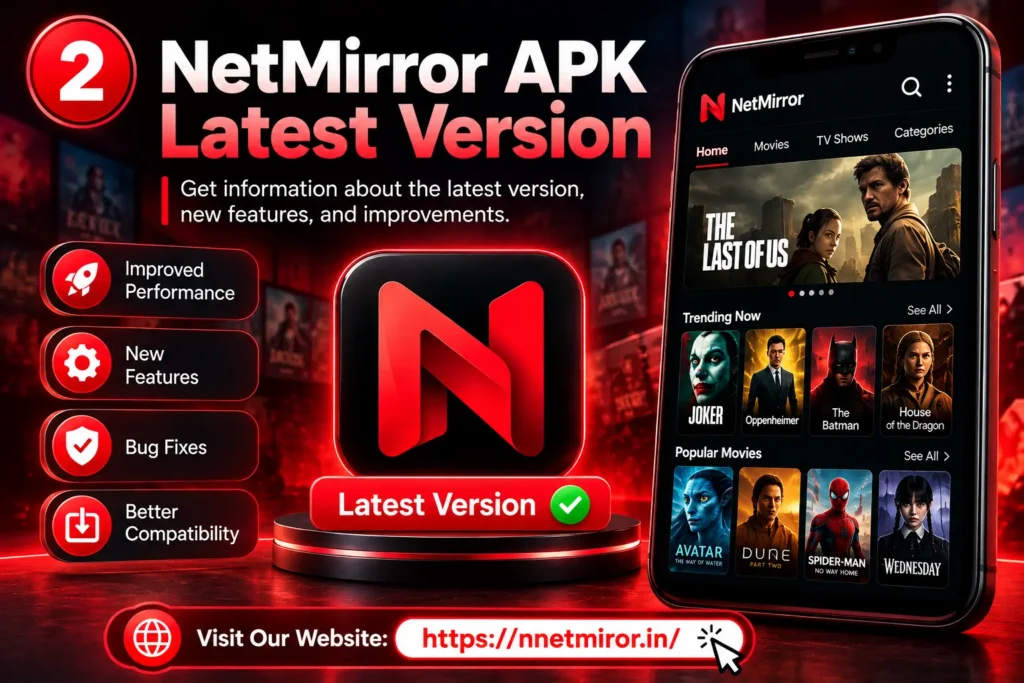
Download NetMirror APK Latest Version
To download NetMirror APK, first check that your Android device meets the requirements listed for the current release. A compatible Android version and enough storage are important for successful installation. You should also confirm that the downloaded file is intended for your device before opening it.
After downloading the file, open your device’s download folder and locate the APK. Android may display a security message when the application comes from outside Google Play. Follow the system instructions carefully and only continue when you trust the source of the file.
Once installation finishes, open NetMirror and check whether the application works correctly. If the app does not open or crashes immediately, verify the Android version and APK compatibility before attempting another installation.
Why Download the NetMirror APK?
An APK provides a manual installation option for compatible Android devices. This can be useful when an application is unavailable through a user’s normal application store or when a particular release is distributed separately. The APK format also allows users to keep an installation file for later use.
However, manual installation also creates additional responsibility for the user. APK files should not be downloaded from random websites without checking their source. A misleading or modified file can create security and privacy risks.
For this reason, the goal should not simply be finding the smallest or newest-looking APK file. Users should prioritize a trustworthy source, compatible version, clear file information, and sensible security practices.
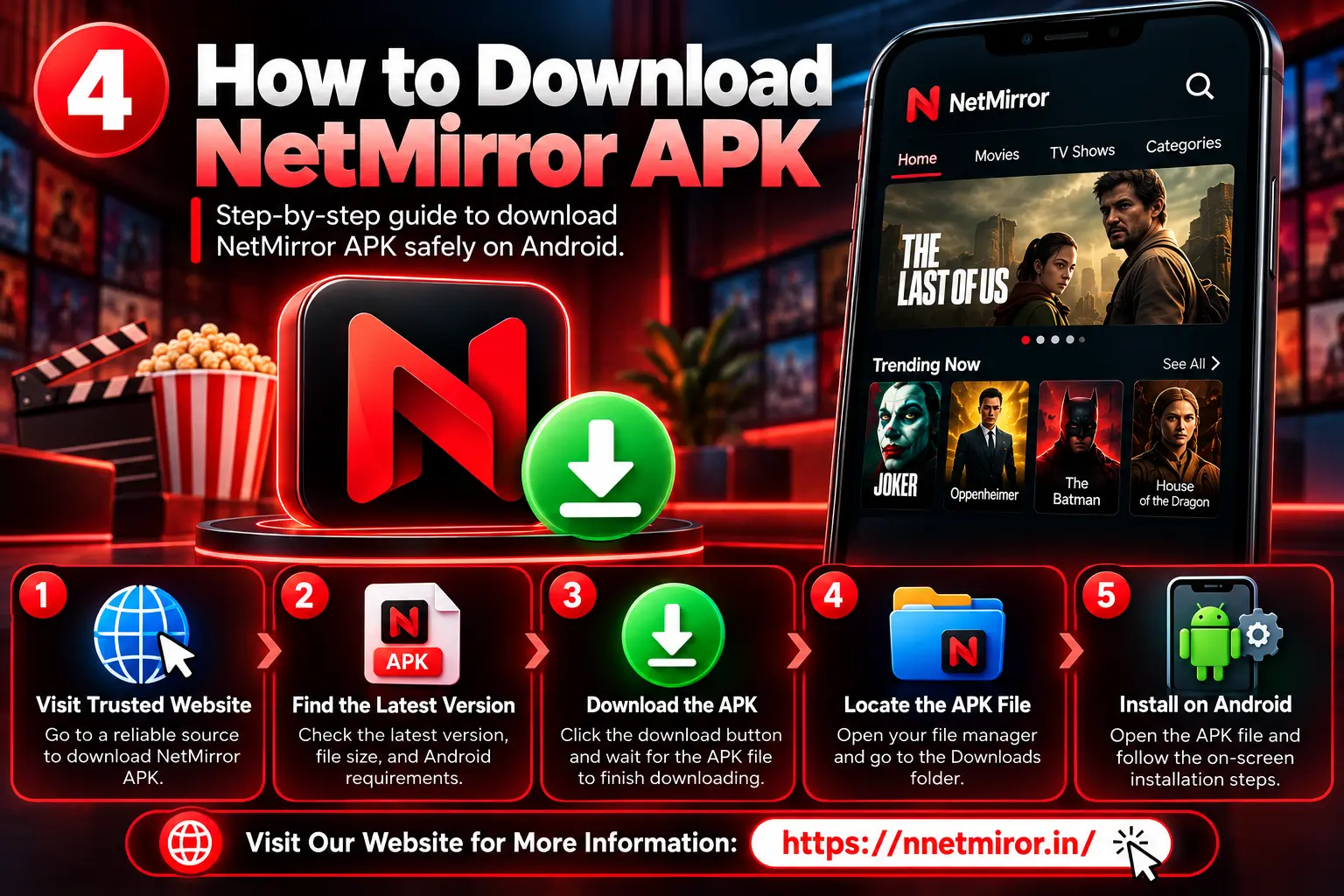
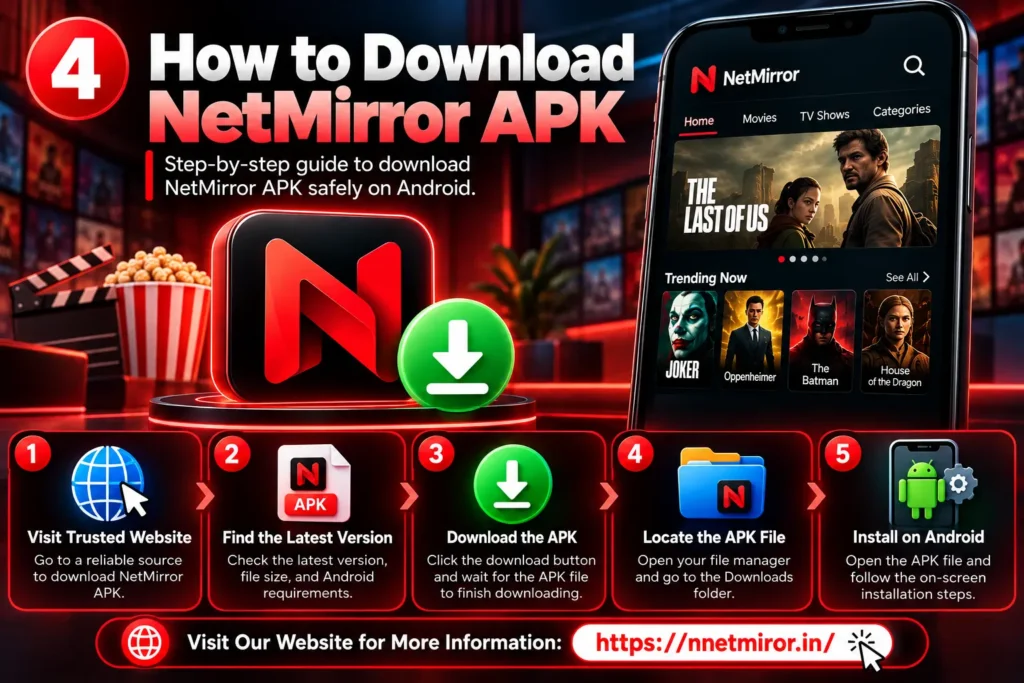
How to Download NetMirror APK on Android
Downloading the application begins with checking the current NetMirror download information. Make sure your device has enough available storage before starting the download. A stable internet connection can also prevent incomplete files and unnecessary download failures.
After selecting the download option, wait until the APK file finishes downloading completely. Do not close the browser or interrupt the process while the file is being transferred. When the download finishes, open the file from your browser’s download section or Android file manager.
Android may prevent the installation until permission is granted for the source used to download the APK. If this happens, review the relevant Android security setting and allow the installation only when you trust the source. After installation, you can disable unnecessary installation permissions again.
How to Install NetMirror APK
Installing NetMirror APK is usually a simple process on compatible Android devices. First, locate the downloaded APK file and tap it to begin installation. Android will display the permissions or security prompts associated with external application installation.
Follow the instructions displayed on your device and wait for the installation to complete. Avoid opening or deleting the APK while the installation is still running. Once the installation has finished, an application icon should become available on your device.
Open NetMirror and check the application interface. If everything works normally, the installation is complete. If Android displays an installation error, check your device storage, Android version, file integrity, and installation permissions.
NetMirror APK Installation Requirements
Before installing NetMirror, make sure your device has enough free storage for the application. Insufficient storage can prevent an APK from installing even when the file itself is valid. Removing unnecessary files or applications may resolve this problem.
Your Android version is another important consideration. Applications can require specific operating-system features, and an older Android version may not support a newer release. Always compare your device’s Android version with the requirements provided for the current APK.
A stable device environment is also helpful during installation. Keeping Android security updates current can reduce risks associated with malicious or modified files. Users should never disable important security protections simply to force an installation.
NetMirror APK on Android Phone
NetMirror APK installation on an Android phone follows the standard APK installation process. Download the compatible file, locate it through the device’s file manager, and follow the Android installation prompts.
The experience can vary between manufacturers because Android interfaces differ across Samsung, Xiaomi, OnePlus, Google Pixel, Motorola, and other devices. The names of security settings may therefore appear slightly different.
If the APK fails to install on your phone, check whether another NetMirror version is already installed. An incompatible existing installation can sometimes interfere with a new package. Removing an outdated installation may help, but make sure you understand the consequences before doing so.
NetMirror APK for Android TV
Users searching for NetMirror APK for Android TV should first verify that the current application supports their television device. Android TV hardware and software can differ significantly between manufacturers.
The APK installation process can also differ from Android phones. Some users may need to transfer the APK to the television or use another supported installation method. A compatible file manager may be required to locate and open the APK.
Before installing NetMirror on a television, check the Android TV version and available storage. If the application installs but does not respond correctly to the remote, the current release may not be optimized for that device.
Is NetMirror APK Safe to Download?
No APK should automatically be considered safe simply because its filename contains the correct application name. Safety depends on the file source, application contents, permissions, and release being installed.
Before downloading NetMirror APK, check whether the website provides clear application information. Avoid pages that force suspicious redirects, unexpected downloads, or unnecessary browser permissions. You should also be cautious when an APK requests permissions unrelated to its apparent purpose.
Keeping your Android security features active is another important precaution. If your device warns that a file may be harmful, do not ignore the warning without understanding why it appeared.
How to Check a NetMirror APK Before Installation
Before opening the APK, review the file information available from the download source. Compare the application name and version with the information displayed on the download page.
You should also consider scanning downloaded files with appropriate security software when available. This provides another layer of protection against potentially harmful files.
Most importantly, avoid downloading multiple versions from random websites simply because they use similar filenames. A clearly identified file from a trustworthy source is preferable to an unknown APK with unclear origins.
NetMirror APK Update Guide
Keeping an application updated can help maintain compatibility with newer Android releases. Updates may also address bugs or improve application stability.
Before updating NetMirror, check the current version installed on your device. Then compare it with the latest available release. If a newer version is available, download the compatible APK and follow the normal installation process.
Do not assume that every website offering a newer version is providing an authentic release. Version numbers should be checked carefully, especially when multiple websites list different versions.
Step-by-Step Update Guide for Android Mobile
- Do NOT Uninstall the Old App: Leave your existing NetMirror app installed on your phone so your watch history, search data, and custom preferences are preserved.
- Download the Latest File: Open your web browser and fetch the latest NetMirror APK file (e.g., build v6.1) from a trusted source.
- Verify File Security: Run the downloaded
.apkfile through a web malware scanner (such as VirusTotal) to check for file integrity. - Run the Update:
- Open your File Manager and go to Downloads.
- Tap the new
.apkfile. - Tap Update (or Install) when prompted.
- Verification Check: Open NetMirror and verify that the app launches without a server connection timeout or crash popup.
Updating NetMirror on Android TV & Firestick
- Launch the Downloader App on your Smart TV or Firestick.
- Enter the direct download URL or Downloader code provided by your source to fetch the latest TV build (e.g.,
NetMirror_TV.apk). - Once downloaded, select Install when prompted to overwrite the older version.
- Select Done, then launch the updated app from your Your Apps & Channels menu.
Important Troubleshooting Tips
- App Not Installed Error: If you get an error saying “App not installed”, check that your device has at least 100 MB of free internal storage. If the error persists, clear your browser cache or uninstall the old version before reinstalling.
- Re-Authorization Code: Recent updates for NetMirror TV may show a QR code or authorization prompt on the first launch after updating. Scan the prompt on your mobile browser or enter the code to activate your session.
- Clear Cache After Updating: Go to Settings > Apps > NetMirror > Storage and tap Clear Cache to wipe out outdated temp files that cause buffering.
NetMirror APK Old Version
Some users search for an older NetMirror APK because a newer version does not work correctly on their device. Older releases can sometimes be compatible with older Android versions, but they may also contain unresolved bugs or outdated security components.
Using an old APK should therefore be approached carefully. If you need an older release, verify its compatibility and source before installation. Avoid installing an outdated file simply because it has a familiar version number.
Whenever possible, a compatible current release is generally preferable to an unnecessarily old installation.
| Version | File Size | Recommended For | Key Characteristics |
| v6.0 | ~65 MB | Mid-range Android phones & TV | Pre-v6.1 build, stable server links, supports 1080p |
| v3.20.5 | ~56 MB | Older Android TVs & Firesticks | Legacy interface, lightweight background memory footprint |
| v3.0 | ~58 MB | Low-RAM Android devices (Android 5.0–7.0) | Basic UI, minimal permissions, works on legacy hardware |
NetMirror APK Download Problems
Sometimes an APK download may stop before completion or produce a corrupted file. This can happen because of an unstable connection, insufficient storage, browser problems, or an unavailable download source.
If the downloaded file cannot be opened, delete the incomplete copy and download it again from a trustworthy source. Make sure your device has enough storage before repeating the process.
If the file downloads correctly but refuses to install, the problem is more likely related to compatibility, permissions, storage, or the APK itself.
NetMirror APK Not Installing
An installation failure can have several possible causes. The Android version may not meet the application’s requirements, or the device may not have enough free storage.
Android can also block installations from external sources. Check the relevant security setting and make sure the browser or file manager has permission when required.
If the problem continues, verify that the APK is complete and intended for your device. Installing an unrelated or incorrectly packaged file will not solve the problem.
If you are experiencing “App Not Installed” or installation failures when trying to set up NetMirror APK, it usually stems from security blockages, existing package conflicts, or storage limitations.
Here are the most effective tips to resolve the installation issue quickly.
Key Troubleshooting Steps
1. Uninstall Any Previous Version First
Android will block an installation if you are attempting to install an older or differently signed version over an existing app.
- Go to Settings > Apps > NetMirror and tap Uninstall.
- Restart your phone, then try running the new
.apkfile again.
2. Disable Google Play Protect Block
Google Play Protect often flags external streaming APKs downloaded from third-party sources and halts the installation process.
- Open the Google Play Store.
- Tap your Profile Icon in the top right corner.
- Select Play Protect > tap the Settings (Gear Icon) in the top right.
- Turn OFF Scan apps with Play Protect.
- Retry installing NetMirror.
3. Re-Enable “Install Unknown Apps”
Ensure your browser or File Manager has active permission to install third-party packages:
- Go to Settings > Apps > Special App Access > Install Unknown Apps.
- Select the browser (e.g., Chrome) or File Manager you are using to open the file.
- Toggle Allow from this source to ON.
4. Free Up Internal Storage Space
NetMirror requires enough room to extract system package files during installation.
- Ensure you have at least 300 MB to 500 MB of free internal storage.
- Clear cached files or move videos/photos off your internal storage.
5. Redownload the APK File
A incomplete or corrupted download will throw a “Parse Error” or “App Not Installed” error.
- Delete the current
.apkfile from your Downloads folder. - Download a fresh build (such as NetMirror v6.1) using a stable Wi-Fi connection.
Verification Check
Once installed, tap Open. The app should launch directly to the main content feed without throwing a package parsing error or closing instantly.
NetMirror APK Not Opening After Installation
If NetMirror installs successfully but does not open, restart your Android device first. Temporary system issues can sometimes prevent newly installed applications from launching correctly.
If the problem continues, check whether your Android version is supported. You should also consider whether another application version is already installed or whether the downloaded file came from an unreliable source.
Clearing the application’s data may help in some cases, but this can remove locally stored application information. Use this option only when you understand its effect.
NetMirror APK Download vs App Store Installation
APK installation and app-store installation are different processes. App stores normally manage application delivery, updates, permissions, and security checks through their own infrastructure.
APK installation gives users more direct control over the installation file. However, this also means users must pay more attention to the file source and compatibility.
For this reason, users should choose the installation method that is officially and safely available for their device. Never install an APK simply because it appears newer than the version offered through a trusted store.
NetMirror APK Download FAQs
What is NetMirror APK?
NetMirror APK is an Android installation package used to install the NetMirror application manually on compatible Android devices. The available version and requirements can change over time.
How can I download NetMirror APK?
Check the current download information, verify your device compatibility, and use the available download button to obtain the APK. Always verify the source before opening the downloaded file.
Is NetMirror APK free to download?
The availability and access conditions can vary depending on the current application and distribution source. Users should check the current information before assuming that every feature or service is free.
Can I install NetMirror APK without root?
Most standard APK installations do not require root access. However, compatibility and installation requirements depend on the particular application release.
Can I install NetMirror APK on Android TV?
This depends on the current release and your Android TV device. Check compatibility before installing the APK on a television.
Can I download NetMirror APK on iPhone?
APK files are designed for Android and cannot be installed directly on iOS. iPhone users should check whether a separate iOS version or supported web experience is currently available.
Why is my NetMirror APK not installing?
Check your Android version, available storage, installation permissions, and APK integrity. An incompatible or incomplete APK can also cause installation failures.
Should I use an old NetMirror APK?
Older versions may be useful for compatibility testing, but they can have outdated features or security limitations. A compatible current release is generally preferable.
How do I update NetMirror APK?
Check the currently installed version and compare it with the latest verified release. If an update is available, download the compatible APK and install it according to Android’s instructions.
Final Thoughts
The NetMirror APK download process is straightforward when the application file is compatible with your Android device. The most important steps are checking the current version, verifying the source, reviewing device requirements, and following Android’s installation instructions.
Users should avoid treating every APK download website as trustworthy. A reliable download process should provide clear application information without unnecessary redirects or suspicious files. Checking the APK before installation can reduce avoidable security and compatibility problems.
If NetMirror does not install or work correctly, start by checking the Android version, available storage, APK integrity, and installation permissions. These basic checks can resolve many common problems without requiring complicated troubleshooting.