Netmirror Latest version v6.0 Download for Andriod, PC, TV and IOS
NetMirror users may search for the NetMirror APK latest version for different reasons. Some users want newer features or interface improvements. Others may experience problems with an older installation. An update can sometimes address compatibility or performance issues.
However, users should avoid trusting every APK labeled “latest.” Third-party files can have different versions or modified packages. Always verify the release information before replacing your existing installation.
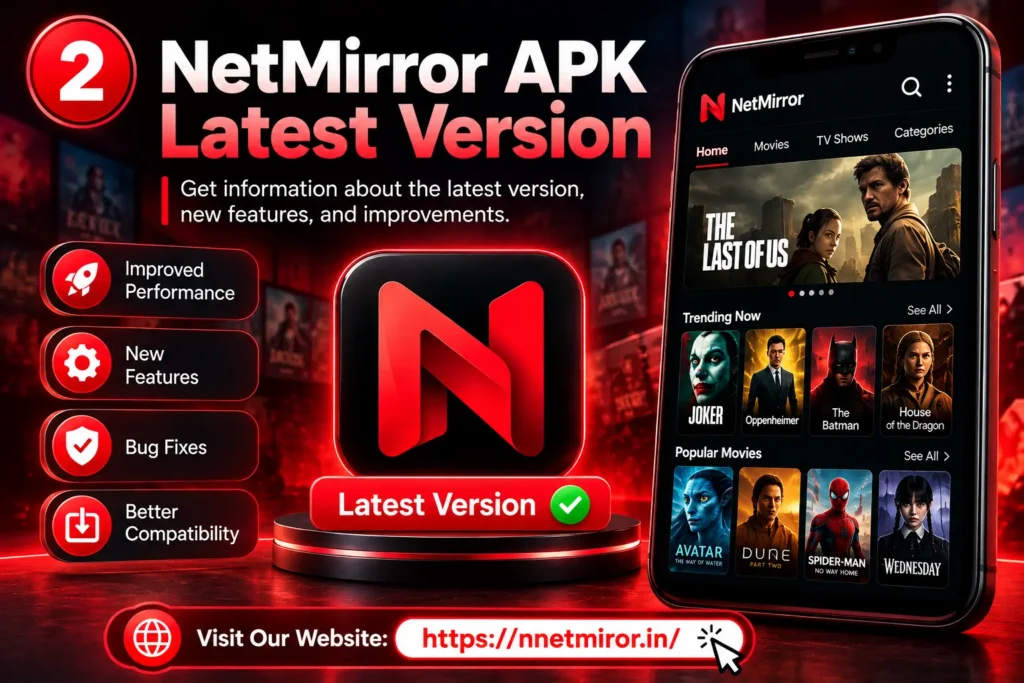
NetMirror Latest Version at a Glance
Because APK releases can change, the exact version number should always be confirmed from the current release information. This prevents outdated numbers from remaining on the website.
Quick Specifications
| Feature | Details |
| App Name | NetMirror APK (Netflix Mirror) |
| Latest Version Build | v6.1 (with stable v6.0 and v3.20.5 legacy builds) |
| Package Size | ~49 MB – 56.3 MB |
| Minimum OS | Android 5.0 (Lollipop) or higher |
| Cost & Account | 100% Free / No registration required |
| Supported Displays | Android Phone, Tablet, Android TV, Firestick, PC (via Emulator) |
Highlights & Key Improvements
- Upgraded Server Network: Optimized video streaming pipelines to minimize load times and reduce playback buffering.
- Enhanced Mirroring Support: Improved TV casting and Chromecast stability across Smart TVs and Fire OS devices.
- Playback Quality Options: Supports adaptive bitrate streaming from 360p up to 1080p / 4K depending on network connectivity.
- Integrated Subtitles & Audio: Multi-language subtitle tracks and built-in audio selection tools.
Quick Installation Summary
- Enable Sideloading: Navigate to Settings > Security > Special App Access > Install Unknown Apps and toggle ON for your browser or file manager.
- Download Package: Download the
NetMirror_v6.1.apkfile from a verified source repository. - Verify Security: Scan the
.apkfile using a tool like VirusTotal before initiating the setup. - Install & Launch: Open the package via your file manager, tap Install, and launch directly.
What Is the NetMirror Latest Version?
The NetMirror latest version refers to the newest available release of the application. New releases may change the interface, improve compatibility, or address technical problems.
Not every update brings major visible changes. Some releases focus mainly on stability or internal improvements. Therefore, users should check release information before deciding whether an update is necessary.
The latest release can also have different device requirements. Older Android versions may behave differently after an update. Checking compatibility first can prevent unnecessary installation problems.
Why Should You Update NetMirror?
Updating an application can provide several practical advantages. New releases may improve how the application works on newer devices. They can also address problems found in previous releases.
An update may improve startup behavior, navigation, or playback stability. It can also resolve bugs affecting specific Android versions. However, these improvements depend on the actual release.
Users should update when the new version offers meaningful improvements. Updating only because a website displays a higher number is not always necessary.
What Can Change in a New NetMirror Release?
Every release can have different changes. Some updates may focus on performance rather than adding visible features.
Common update areas can include interface improvements, compatibility changes, playback adjustments, and bug fixes. Search or navigation behavior may also change between releases.
Interface Improvements
A newer release may change menus, navigation, or content organization. These changes can make frequently used sections easier to access.
However, interface changes can initially feel unfamiliar. Users may need a short adjustment period after installing an update.
Playback Improvements
Streaming applications depend on stable playback components. Updates may improve compatibility with certain devices or Android versions.
Playback performance still depends heavily on internet speed and device resources. Therefore, updating cannot guarantee that every buffering problem will disappear.
Bug Fixes
Developers may release updates to address known application problems. These can include crashes, loading failures, or unexpected behavior.
Bug fixes are particularly useful when the previous release worked poorly on your device. Always check whether the reported problem matches your situation.
Compatibility Changes
Android devices receive operating-system updates over time. Older application releases may eventually behave differently on newer systems.
A newer NetMirror release may provide better compatibility with supported Android environments. Users should still check the application’s current requirements before updating.
How to Check Your Current NetMirror Version
Checking the installed version is useful before downloading another APK. It prevents accidentally installing an older release.
Open your Android device settings and locate the installed applications section. Find NetMirror and open its application information page. Depending on the Android version, the installed version may appear there.
You can then compare that version with the release information available from a trusted source. This simple step helps reduce unnecessary installations.
How to Update NetMirror to the Latest Version
Updating an APK-based application requires more care than updating apps through an official store.
First, identify the version currently installed on your device. Then verify the newer release information before downloading anything. Make sure the downloaded package matches your device architecture and Android compatibility.
After downloading the verified APK, open the file from your device storage. Android may request permission to install applications from that source. Follow the system instructions only when you trust the source.
If Android allows the package to update your existing installation, continue with the installation. Keep the application closed during the process to reduce unexpected errors.
After installation, launch NetMirror and check whether your existing settings still work correctly. If the new release creates problems, investigate compatibility before repeatedly reinstalling files.
Should You Uninstall the Older Version First?
Usually, users should avoid uninstalling an existing installation immediately. A compatible update can often replace the previous installation directly.
Removing the old application first can also remove locally stored settings or application data. The exact result depends on the Android device and application behavior.
If an update cannot install over the existing version, check whether the APK uses a different signing key. A mismatched package may require a clean installation.
Before removing an older version, make sure you understand what data could be lost. This is especially important if the application stores preferences locally.
NetMirror Latest Version vs Old Version
Comparing the NetMirror APK Latest Version (v6.1 / v6.0) against Older Versions (v3.20.5 / v3.0) highlights differences in server stability, interface performance, and system compatibility.
Core Comparison Table
| Feature / Metric | Latest Version (v6.1 / v6.0) | Older Versions (v3.20.5 / v3.0) |
| Server Connectivity | Upgraded playback links with lower buffering | Outdated stream links leading to server timeout errors |
| User Interface | Modernized layout with fast category filters | Classic, lightweight grid layout |
| Casting Support | Improved Chromecast & Smart TV pairing | Basic screen mirroring with potential sync drops |
| Resource Usage | Higher RAM (~2 GB+) & storage demands (~60 MB) | Ultra-lightweight RAM footprint (~50 MB file) |
| OS Requirement | Optimized for Android 8.0 to Android 14+ | Best for legacy Android 5.0 – 7.0 devices |
| Bug Fixes | Patched black screen and app crash issues | Frequent force-close errors on newer Android builds |
Key Comparison Insights
1. Server Link & Stream Stability
- Latest Version: Uses active streaming pipelines that automatically switch backup servers when a mirror link goes down.
- Older Versions: Often experience black screens, infinite loading loops, or source errors because legacy server endpoints have been decommissioned.
2. Performance on Low-End Hardware
- Latest Version: Higher graphics processing overhead can cause lag on legacy TV boxes or low-RAM smartphones.
- Older Versions: Highly responsive on devices with only 1 GB of RAM or outdated Android OS (Lollipop / Marshmallow).
3. TV Remote Navigation
- Latest Version: Features dedicated directional key (D-pad) mapping for seamless Android TV remote control.
- Older Versions: Often require an external mouse toggle app to navigate touch-based buttons on non-touch screens.
Verdict: Upgrading to the Latest Version (v6.1) is recommended for smoother 1080p playback and active servers. Roll back to an Older Version only if running low-spec hardware experiencing frequent crashes.
An older version can sometimes remain useful for compatibility reasons. However, keeping outdated APK files indefinitely can create unnecessary security and stability concerns.
How to Know If an APK Is Really the Latest Version
The word “latest” does not automatically prove that an APK is current. Many download websites keep old files while labeling them with current terms.
Check the version number, release date, and available changelog when possible. Compare the information across reliable sources before installation.
Also check the APK file name and package information. A modified or repackaged file may not represent the original application release.
Users should never rely only on a website title. The actual APK metadata and release information matter more.
NetMirror Update Requirements
NetMirror Update Requirements Overview
| Parameter | Android Mobile & Tablet | Android TV / Firestick | PC (via Emulator) |
| Minimum Operating System | Android 5.0 (Lollipop) or higher | Android TV 7.1+ / Fire OS 6.0+ | Windows 10/11 or macOS 11+ |
| Minimum Available Storage | 150 MB free space (for package unpacking) | 200 MB free space | 2 GB free disk space |
| Minimum RAM | 2 GB RAM (3 GB recommended) | 1.5 GB RAM (2 GB recommended) | 4 GB RAM (8 GB recommended) |
| System Permissions | “Install Unknown Apps” enabled | Downloader App / Unknown Sources enabled | Virtualization (VT-x/AMD-V) enabled |
| Internet Speed | 5 Mbps for HD / 25 Mbps for 4K | 5 Mbps for HD / 25 Mbps for 4K | 5 Mbps for HD / 25 Mbps for 4K |
Essential Pre-Update Prerequisites
- System Permission: Go to Settings > Apps > Special App Access > Install Unknown Apps and ensure your web browser or File Manager is toggled ON.
- Google Play Protect Bypass: Disable Play Protect temporary scanning under Play Store > Profile > Play Protect > Settings to prevent third-party update blocking.
- Storage Clearance: Clear app cache or uninstall old temporary package installers to maintain at least 150 MB of free internal storage space.
- Signature Match Verification: Always update using an
.apkfile signed by the same developer source to prevent “App Not Installed” signature mismatch errors.
Before updating NetMirror, check a few basic requirements.
These checks take only a few minutes. They can prevent many common APK installation problems.
NetMirror Latest Version on Android Phones
Android phones are the most common environment for APK installation. The update process is generally straightforward when the package is compatible.
Before updating, check your Android version and available storage. Then download the appropriate release and verify its details.
If the installer reports an error, do not immediately download another random APK. The problem may involve incompatible architecture, insufficient storage, or package conflicts.
NetMirror Latest Version on Android TV
Android TV devices can have different compatibility requirements than phones. Remote navigation and screen layouts may also behave differently.
Before updating NetMirror on Android TV, confirm that the release supports your TV environment. Check available storage and ensure the APK is transferred correctly.
If the application stops responding after an update, clearing temporary application data may help. Persistent problems may indicate compatibility issues with that particular release.
What If the Latest NetMirror Version Is Not Working?
Installing the newest version does not guarantee perfect performance. Problems can come from the application, device, network, or compatibility layer.
If NetMirror crashes after an update, restart the device first. Then check whether sufficient storage remains available.
For buffering, test the internet connection and reduce unnecessary network activity. For installation errors, verify the APK compatibility and package source.
If the previous release worked correctly, compare the new release with the old one. This can help determine whether the update caused the problem.
Common NetMirror Update Problems
APK Will Not Install
The package may be incompatible with your Android version. It can also conflict with an existing installation.
Update Installation Failed
Insufficient storage or package-signature differences can cause installation failures. Check both before attempting another installation.
NetMirror Crashes After Updating
Restart the device and clear temporary application data. If the issue continues, investigate compatibility with the current Android release.
New Version Is Slower
Performance can depend on device resources and background applications. Close unnecessary apps and check available storage.
Previous Settings Are Missing
Some updates or clean installations can affect local application data. This is why removing the previous version should not be your first step.
Is the NetMirror Latest Version Always Better?
Not necessarily. A newer release is generally preferable when it provides useful fixes or compatibility improvements. However, every update can introduce new bugs.
Users with older devices should pay particular attention to compatibility. A newer application may require system features unavailable on an older Android version.
The best approach is to compare the release information with your device requirements. Update when the newer version is suitable for your specific setup.
NetMirror Update Safety Tips
APK updates require more attention than ordinary store updates. Users should verify the file before installing it.
Avoid APK files from unknown pages that use misleading download buttons. Check the file source, version information, permissions, and package details.
A reputable security scanner can also provide another layer of checking. Keep Android security features enabled and avoid granting unnecessary permissions.
Most importantly, never assume that a file is safe simply because its filename contains “latest version.”
Frequently Asked Questions
What is the NetMirror latest version?
It means the newest currently available NetMirror release. The exact version number can change, so verify the current release before downloading.
Should I update NetMirror?
If your current release has problems or a newer compatible release offers useful improvements, updating can make sense.
Can I update NetMirror without uninstalling it?
A compatible APK can often update an existing installation directly. Package-signature or compatibility differences can prevent this.
Why is the latest NetMirror APK not installing?
Common causes include insufficient storage, incompatible Android versions, package conflicts, or an incompatible APK build.
Can I use an older NetMirror version?
An older release may work on some devices, but it can have compatibility and security limitations. Use older versions cautiously.
How can I check my installed NetMirror version?
Open Android Settings, find NetMirror under installed applications, and check its application information.
Does updating NetMirror remove my data?
A normal compatible update may preserve application data. A clean installation can produce different results, so check before uninstalling.
Is every APK labeled “latest” actually new?
No. Website labels can be inaccurate. Always verify the actual version number and release information.
Final Verdict
The NetMirror latest version 2026 should be selected based on compatibility, reliability, and trustworthy release information. A higher version number alone does not guarantee a better experience.
Before updating, check your current version, Android compatibility, storage, and APK source. These simple checks can prevent many unnecessary installation problems.
For users whose current release works well, an update is not automatically urgent. For users facing compatibility or performance issues, a newer compatible release may provide a better experience.
Always verify the actual release details before installing any APK. This approach is safer and more practical than downloading every file advertised as the “latest NetMirror APK.”