NetMirror APK v6.0 Download Latest For Android (official) 2026
Installing an APK is different from installing applications through Google Play. Android provides flexibility for applications distributed outside its standard marketplace. However, users should understand the installation process before opening an unfamiliar APK file.
The NetMirror install process mainly involves downloading a compatible APK, checking the file, allowing installation from the chosen source, and completing the Android installation process.
The exact menus can differ between Android versions and device manufacturers. Android phones, tablets, Android TV, and Google TV may also use different settings.
This guide explains the complete NetMirror APK install process. It also covers common installation errors, permissions, file verification, updating, and steps to take after installation.
What Do You Need Before Installing NetMirror?
Before starting the installation, prepare your device properly. A few simple checks can prevent common APK installation problems.
| Requirement Category | Essential Prerequisite | Purpose & Action Required |
| System Permissions | “Install Unknown Apps” Enabled | Allows sideloading third-party .apk packages outside the Google Play Store via browser or File Manager. |
| Security Settings | Play Protect Scan Disabled | Prevents Google Play Protect from blocking or halting third-party APK installations. |
| Storage Availability | 150 MB – 300 MB Free Space | Ensures sufficient room for downloading, package extraction, and video stream caching. |
| Hardware Overhead | Minimum 2 GB RAM (3 GB+ Recommended) | Prevents low-memory background app crashes and infinite buffering loops. |
| Operating System | Android 5.0+ / Fire OS 6.0+ / TV OS 7.1+ | Ensures system API compatibility with the latest build features and media players. |
| Network Setup | 5 Mbps+ Wi-Fi / Mobile Data | Delivers stable HD media loading and smooth screen casting capabilities. |
| File Integrity | Fresh, Verified APK Package | Eliminates corrupt package errors (“Parse Error”) by verifying file integrity via tools like VirusTotal. |
Do not begin installation until you know where the APK came from. A file labeled “latest” is not automatically trustworthy.
NetMirror APK Installation Process
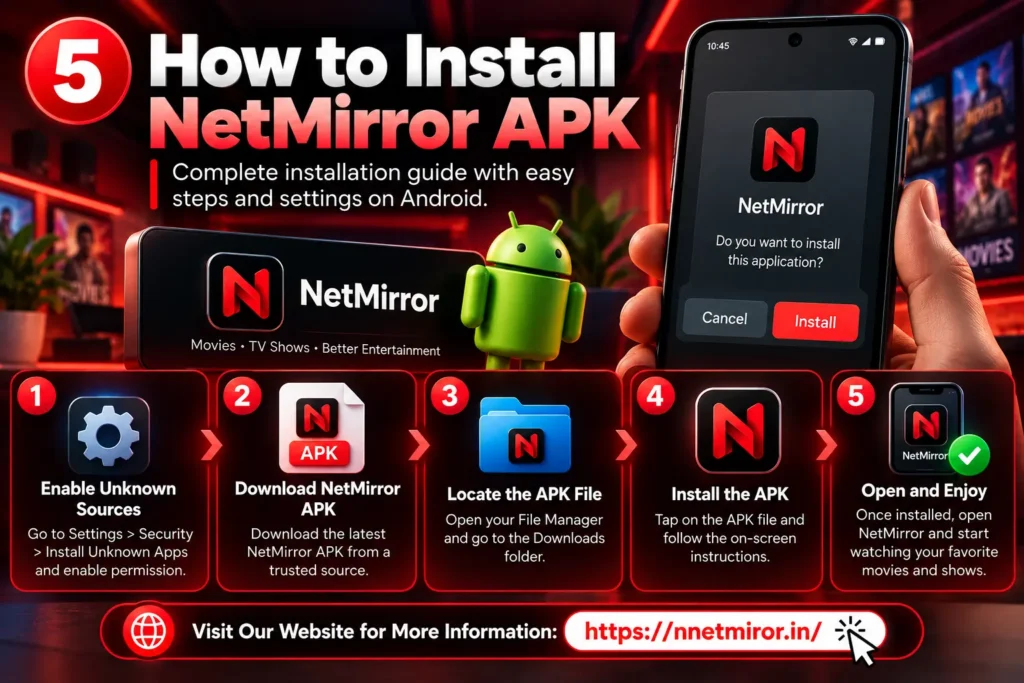
The general installation process follows a simple sequence.
First, obtain the compatible NetMirror APK from a source you have evaluated carefully. Next, locate the downloaded file using your device’s file manager.
Android may block the installation because the APK came from outside the normal application marketplace. You may need to allow the specific source to install applications.
After permission is granted, return to the APK file and start the installation. Review the installation prompt before confirming.
Once installation finishes, launch NetMirror and check whether the application behaves correctly on your device.
Step 1: Check Your Android Version
Compatibility should be checked before downloading an APK. Different Android versions can support different application requirements.
Find the displayed Android version and compare it with the requirements of the NetMirror release you intend to install.
If your device uses an older Android version, do not assume that every newer APK will work correctly.
Step 2: Check Available Storage
APK installation requires available storage. Your device may also need additional temporary space during installation.
Open Android settings and find the storage section. Check how much free space remains.
If storage is nearly full, remove unnecessary files or applications before continuing.
Keeping free storage can also help the device operate more smoothly after installation.
Step 3: Download the NetMirror APK
Download the APK only after verifying the source. Avoid pages with misleading buttons or multiple unexplained APK versions.
Check the displayed version information before starting the download. If the file information is unclear, investigate the source rather than downloading immediately.
After downloading, do not open the file until you have confirmed that it is the intended APK.
Step 4: Locate the Downloaded APK
Android usually stores downloaded files inside the Downloads folder.
Open your device’s file manager and navigate to the Downloads directory. Find the NetMirror APK file you downloaded.
If you cannot locate the file, use the file manager’s search function. Make sure the file extension is actually .apk.
Do not open files with unfamiliar extensions simply because their names contain “NetMirror.”
Step 5: Allow Installation From the Selected Source
Modern Android versions generally control APK installation through a source-specific permission.
When you attempt to open an APK, Android may display a warning explaining that installation from that source is not currently allowed.
If you trust the source, open the relevant settings option and allow that specific application to install unknown applications.
The exact wording varies between Android versions and manufacturers.
Step 6: Start the NetMirror APK Installation
Return to the downloaded APK and select it again. Android should now display the installation interface if the package is compatible.
Review the application information shown by the installer. If everything appears correct, select the installation option.
Wait for the installation to finish. Avoid repeatedly tapping the installation button while the device is processing the package.
Step 7: Open NetMirror After Installation
Once installation completes, Android may provide an option to open the application immediately.
Launch NetMirror and allow it to finish its initial setup. The first startup can sometimes take longer than subsequent launches.
Check the main interface and test basic navigation. If the application crashes immediately, troubleshoot the installation rather than repeatedly reinstalling the same file.
NetMirror Install on Android Phone
Android phones generally provide the simplest APK installation experience.
Download the compatible APK and locate it through the file manager. If Android blocks the file, enable installation permission for the browser or file manager that opened it.
Return to the APK and complete the installation. Afterward, launch the application and review its permissions.
The exact settings can vary between Samsung, Google Pixel, Xiaomi, OnePlus, Motorola, and other Android devices.
NetMirror Install on Android Tablet
The tablet installation process is similar to phone installation. However, the interface can look different depending on the tablet manufacturer.
Check the tablet’s Android version and available storage first. Then download and locate the compatible APK.
After installation, test the application in both portrait and landscape orientation when applicable. Some mobile interfaces may display differently on larger screens.
NetMirror Install on Android TV
Android TV uses a different interface from smartphones. You may need to transfer the APK to the television or use a compatible download method.
Once the APK is available on the TV, open it using a suitable file manager. Android TV may request permission to install applications from that source.
Allow the permission only if you trust the APK source. Then return to the file and complete the installation.
Afterward, test the application with your television remote. Make sure menus and selection controls respond properly.
NetMirror Install on Google TV
Google TV uses a TV-focused Android environment. The exact installation method depends on the device and current system configuration.
First, confirm that the NetMirror release is compatible with your Google TV device. Then make the APK available through a supported transfer or download method.
Use a file manager to locate the APK and follow the installation prompts. After installation, open the application and test remote navigation.
If the interface does not respond correctly to the remote, the APK may not be fully optimized for your TV environment.
NetMirror Install Using a USB Drive
Some Android devices allow APK files to be accessed through external USB storage.
Download the APK on another device and transfer it to a USB drive. Connect the drive to your compatible Android TV or device.
Open the file manager and locate the APK. Select the file and follow the installation prompts.
USB installation is not identical on every television. Some manufacturers restrict external storage access or APK installation.
NetMirror Install Through File Transfer
Another option is transferring the APK from a computer or phone to your Android device.
The transfer method depends on the device. Some Android TV devices support network-based file transfer, while others may use USB storage.
Regardless of the transfer method, verify the APK before opening it. Transferring a file successfully does not prove that the file is safe.
What Does “Install Unknown Apps” Mean?
Android uses this setting to control applications installed outside its standard marketplace.
Older Android versions used a broader setting for unknown sources. Modern Android versions generally allow users to authorize individual applications as installation sources.
For example, a browser may need permission to install an APK downloaded through that browser.
This permission does not mean every APK is safe. It simply allows Android to proceed with an external application installation.
Should You Keep Unknown App Installation Enabled?
You generally do not need to keep the permission enabled permanently.
If you enabled it only to install an APK, you can review the setting afterward. Depending on your Android version, you may be able to disable the permission for that source.
Limiting external installation permissions can reduce accidental APK installations.
How to Verify the NetMirror APK Before Installation
Verification is an important part of APK installation.
First, check the file name and version information. Then consider the file size and source details.
A reputable malware-scanning solution can provide another layer of checking. Users who understand Android package verification can also inspect package information and digital signatures.
Do not install a file simply because its webpage claims that it is “official” or “100% safe.”
NetMirror APK Installation Permissions
During installation, Android may display application information or permissions.
Read the information carefully before accepting. If the requested access appears unrelated to the application’s purpose, reconsider the installation.
Permissions can also be reviewed after installation through Android settings.
This gives users more control over what an installed application can access.
NetMirror Install Without Root
A normal APK installation does not generally require root access.
Rooting changes the Android device’s system-level permissions. It can introduce additional security and stability risks.
Users should not root their phones simply to install a standard APK. If an installation guide tells you to root your device unnecessarily, treat that instruction cautiously.
NetMirror Install on Rooted Android Devices
Rooted devices can behave differently because system modifications may affect application compatibility.
If you use a rooted phone, avoid changing system files merely to force an application to install.
A standard compatible APK should normally be installed through Android’s regular package installer.
NetMirror APK Install Error: “App Not Installed”
The “App not installed” message can have several causes.
The APK may be incompatible with your Android version. It may also conflict with an existing installation or use a different signing key.
Insufficient storage can produce similar failures. Check free space before attempting another installation.
If another NetMirror installation already exists, investigate whether the new package is compatible with the existing installation.
NetMirror APK Parse Error
A parse error can indicate that Android cannot properly process the APK package.
The file may be incomplete, corrupted, incompatible, or designed for an unsupported Android environment.
Instead of repeatedly opening the same file, verify the APK and check your Android version.
NetMirror Installation Is Blocked
Android may block an APK because installation from the current source is not authorized.
Check the installation permission for the browser or file manager that opened the APK.
Only enable this permission when you trust the source and understand what file you are installing.
NetMirror APK Downloaded but Will Not Open
First, verify that the file actually has an APK extension. Some websites use confusing download methods that can produce incomplete files.
Check the file size and download status. If the file appears incomplete, obtain a verified copy from a trustworthy source.
Do not rename random files to “.apk” and expect Android to install them.
NetMirror Installation Failed Because of Storage
Check available device storage before trying again.
Delete unnecessary files, clear unused application data, or remove applications you no longer need.
After freeing space, restart the installation process.
NetMirror Install Error After an Update
An update can fail when the new package is incompatible with the existing installation.
This can happen when package signatures differ or when the release uses a different application build.
Before uninstalling the existing version, determine whether you need any locally stored data. A clean installation may remove that information.
What to Do After Installing NetMirror
The installation process is not the final step. Users should perform a few checks before regular use.
Open the application and confirm that it starts correctly. Review its permissions and notification settings.
Check that navigation, search, playback, and audio behave normally. On Android TV, test remote controls as well.
If the application requests unexpected information or permissions, investigate before continuing.
NetMirror Installation Checklist
| Checklist Item / Action Step | Purpose & Description | Platform Target | Status Check |
| 1. Uninstall Older Versions | Remove existing builds to avoid signature mismatch or “App Not Installed” errors. | Android / TV / Firestick | Required |
| 2. Enable Unknown Sources | Allow browser/file manager permission under Settings > Special App Access. | Android / Android TV | Required |
| 3. Disable Play Protect | Turn off Play Protect temporary scanning in Google Play Store settings. | Mobile Android | Recommended |
| 4. Storage Verification | Ensure a minimum of 200 MB free internal space for package extraction. | All Devices | Required |
| 5. Network Stability | Connect to a stable Wi-Fi (5 GHz preferred) to prevent download file corruption. | All Devices | Required |
| 6. Downloader App Setup | Install the Downloader app and enable ADB / Unknown Apps permissions. | Amazon Firestick / TV | Firestick Only |
| 7. Malicious File Scan | Pass the .apk package through VirusTotal or an on-device scanner prior to setup. | All Platforms | Recommended |
| 8. Post-Install Cache Clear | Clear temporary app cache in Settings > Apps > NetMirror for optimal loading. | All Platforms | Recommended |
Completing these checks makes the installation process more controlled and easier to troubleshoot.
How to Update NetMirror After Installation
Once NetMirror is installed, future updates can involve another APK installation.
Check the currently installed version before downloading an update. Then compare it with the newer release information.
If the update is compatible, install the newer APK over the existing version when Android allows it.
Avoid uninstalling the current version unless there is a specific reason. Removing the application first can affect locally stored data.
Should You Uninstall NetMirror Before Reinstalling?
Not always.
If NetMirror is simply experiencing a temporary problem, clearing its cache or restarting the device may be enough.
Uninstalling should generally be considered when ordinary troubleshooting does not resolve the problem. Before doing so, understand what application data may be removed.
If you reinstall, make sure you are using a verified and compatible APK.
NetMirror Installation Safety Tips
Never rush the APK installation process.
Avoid fake download buttons and pages that automatically download several files. Verify the APK before opening it.
Do not disable Android security features permanently just to install an application.
Review permissions and keep your device’s operating system updated when supported.
Most importantly, remember that APK installation is a technical process. A successful installation does not automatically mean the application or source is trustworthy.
Frequently Asked Questions
How do I install NetMirror APK on Android?
Download a compatible APK, locate the file, allow the trusted installation source when Android requests permission, and complete the package installation.
Do I need root to install NetMirror?
No. Standard APK installation does not normally require root access.
Why does Android say “App not installed”?
Possible causes include insufficient storage, incompatible Android versions, package conflicts, or incompatible signatures.
Can I install NetMirror on Android TV?
It may be possible when the current release supports your Android TV device. Verify compatibility before installation.
Can I install NetMirror on Google TV?
Compatibility depends on the specific Google TV device and application release.
Why is my NetMirror APK not opening?
The file may be incomplete, incompatible, corrupted, or not actually an APK file. Verify the file and your device compatibility.
Do I need to enable unknown sources?
Modern Android versions usually require permission for the specific application that is installing an external APK.
Should I disable Android security before installing NetMirror?
No. Avoid disabling security protections unnecessarily. Review the file and source instead.
Can I install an older NetMirror version?
Older versions may work on some devices, but they can have compatibility or security limitations.
Should I uninstall NetMirror before updating?
Not usually. A compatible APK can often update the existing installation directly.
Final Thoughts
The NetMirror APK install process is straightforward when the APK and Android device are compatible. The most important steps are verifying the file, checking compatibility, managing installation permissions, and reviewing the application after installation.
Android phones and tablets usually provide a simple installation process. Android TV and Google TV can require additional file-transfer or TV-specific steps.
If installation fails, avoid downloading random APK files immediately. First identify whether the problem involves storage, compatibility, permissions, package conflicts, or file integrity.
A careful installation process is better than simply following a download button. Verify the source, protect your device, and only grant permissions that you understand.